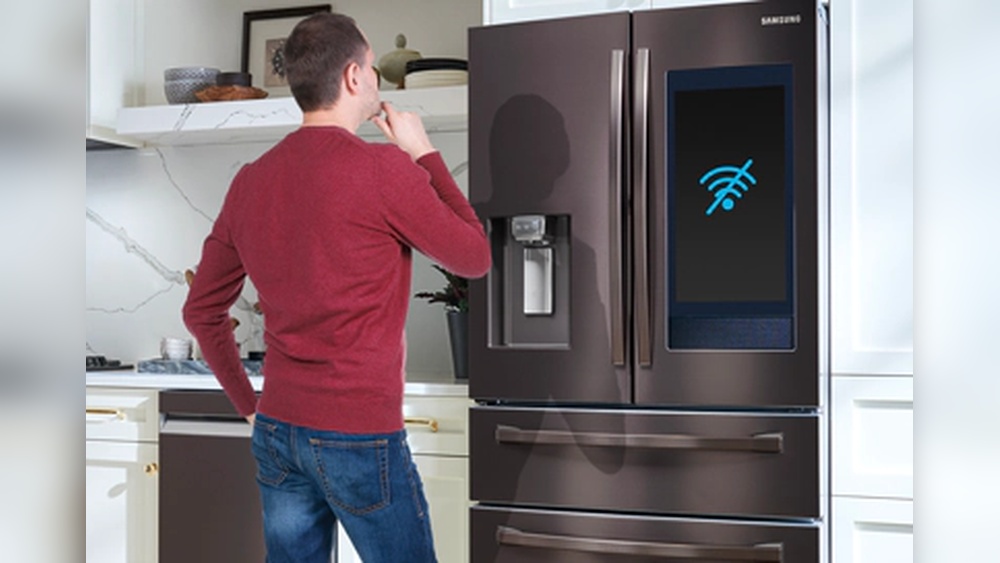
Is your Samsung smart refrigerator refusing to connect to Wi-Fi? You’re not alone, and it’s more frustrating than you might think.
Without a stable Wi-Fi connection, your fridge can’t sync with your smartphone, update software, or even manage smart features that make your life easier. But don’t worry—you don’t have to be a tech expert to fix this. You’ll discover simple, step-by-step solutions that get your Samsung smart refrigerator back online fast.
Keep reading to take control of your fridge’s connectivity and enjoy the smart convenience you invested in.
Quick Wi-fi Fixes
When your Samsung Smart Refrigerator fails to connect to Wi-Fi, quick fixes can help restore the connection fast. These simple steps do not require technical skills. They often solve the issue within minutes. Follow these easy methods before trying complex solutions.
Toggle Wi-fi And Airplane Mode
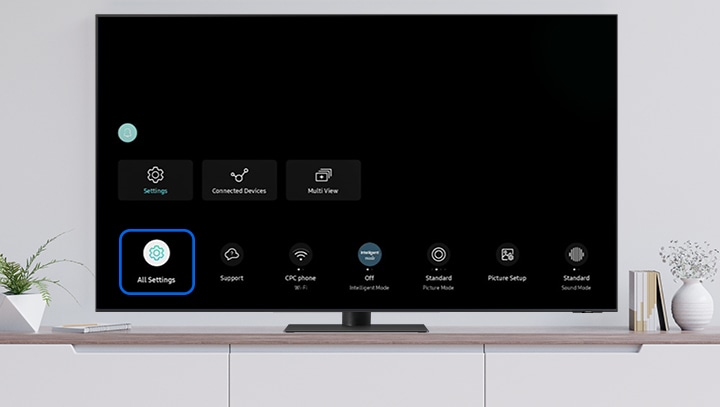
Turn off the refrigerator’s Wi-Fi from the settings menu. Wait about 10 seconds. Turn the Wi-Fi back on to refresh the connection. Next, enable Airplane Mode. Leave it on for 5 seconds. Disable Airplane Mode. This resets all wireless connections quickly.
Forget And Rejoin Network
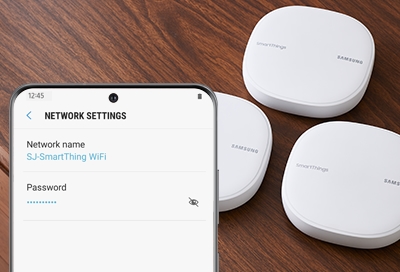
Go to the Wi-Fi settings on your refrigerator. Find your home network in the list. Select “Forget” to remove it from memory. After that, search for the network again. Enter your Wi-Fi password carefully. This clears any saved errors and reconnects the fridge fresh.
Restart Refrigerator And Router
Power off your Samsung Smart Refrigerator. Unplug it from the power source for 30 seconds. Plug it back in and turn it on. At the same time, restart your Wi-Fi router. Unplug the router, wait 30 seconds, then plug it back in. Restarting both devices often fixes connection glitches.
Credit: www.samsung.com
Check Basic Settings
Before diving into complex troubleshooting, start by checking basic settings on your Samsung smart refrigerator. Many Wi-Fi connection problems arise from simple toggles or modes that interfere with connectivity. Confirming these settings helps ensure your device is ready to connect to your network without issues.
Confirm Wi-fi Is Enabled
Make sure the Wi-Fi function on your refrigerator is turned on. Navigate to the settings menu and look for the Wi-Fi option. If it is off, turn it on to allow your fridge to search for available networks. Without Wi-Fi enabled, the refrigerator cannot connect to the internet.
Disable Power Saving Mode
Check if your refrigerator is in power saving mode. This mode can limit wireless functions to save energy. Disable power saving mode from the settings menu. Turning it off allows the Wi-Fi to work at full strength and maintain a stable connection.
Turn Off Airplane Mode
Airplane mode disables all wireless connections. Verify that airplane mode is turned off on your smart refrigerator. If it is on, switch it off to enable Wi-Fi and other wireless features. This simple step often resolves connectivity problems quickly.
Reset Network Settings
Resetting the network settings on your Samsung smart refrigerator can fix many Wi-Fi connection problems. This action clears all saved network data and refreshes the device’s ability to find and connect to your Wi-Fi. It helps solve issues caused by incorrect settings or software glitches.
Performing a network reset is simple and safe. It does not delete your personal files or settings on the fridge. After resetting, you will need to reconnect to your Wi-Fi network with the password.
Steps To Reset On Samsung Fridge
Start by opening the fridge’s Settings menu on the touchscreen display. Find the “General” or “Network” section. Look for an option named “Reset Network” or “Reset Wi-Fi, Bluetooth, and Mobile Data.”
Select this option and confirm that you want to reset. The fridge will clear all network settings and restart the network modules. Once done, go back to Wi-Fi settings and reconnect to your home network.
Effect Of Network Reset
Network reset removes all saved Wi-Fi networks and Bluetooth devices from the fridge. This clears any wrong or corrupted settings that could block connection. The fridge returns to default network settings, ready to connect fresh.
After reset, you must enter your Wi-Fi password again. This step ensures a clean connection without old errors. Resetting the network can fix stubborn Wi-Fi issues without affecting other fridge functions.
Credit: www.samsung.com
Address Vpn And App Conflicts
VPNs and conflicting apps can block your Samsung smart refrigerator from connecting to Wi-Fi. These tools may interfere with network signals or the SmartThings app. Troubleshooting this issue involves checking VPN settings and isolating app conflicts. This helps restore smooth Wi-Fi connection and app functionality.
Disable Vpn If Active
VPNs create secure internet tunnels but can disrupt local device connections. Turn off any VPN running on your phone or router. This stops VPN interference with the refrigerator’s Wi-Fi connection. After disabling VPN, try reconnecting the fridge to your Wi-Fi network.
Many users find their smart fridge connects easily once VPN is off. If the problem goes away, keep the VPN off while using the SmartThings app. This ensures stable communication between your devices and Samsung servers.
Use Safe Mode To Identify Apps
Safe Mode temporarily disables third-party apps on your phone. It helps spot apps causing conflicts with the SmartThings app or Wi-Fi connection. Restart your phone in Safe Mode following Samsung’s instructions.
While in Safe Mode, open the SmartThings app and try connecting to your fridge. If it works, some app on your phone blocks the connection in normal mode. Remove or update recently installed apps that may cause issues.
Testing in Safe Mode narrows down the cause quickly. Fixing or uninstalling problem apps restores reliable Wi-Fi connection to your Samsung refrigerator.
Router And Network Checks
When your Samsung Smart Refrigerator fails to connect to Wi-Fi, the issue often lies within the router or network settings. Checking your router and network is a crucial step. It helps ensure the connection between your fridge and the internet is stable and strong. This section guides you through simple checks you can perform on your router to fix connectivity problems.
Check Router Channel Settings
Routers broadcast Wi-Fi signals on different channels. Sometimes, crowded channels cause interference. This interference can block your refrigerator from connecting. Access your router’s settings through its IP address in a web browser. Look for the wireless or Wi-Fi section and check the channel settings.
Try switching the channel to one less crowded, such as channels 1, 6, or 11 for 2.4 GHz networks. These channels reduce overlap and interference from other devices. After changing the channel, save the settings and restart your router. This step often improves the signal quality and helps your fridge connect easily.
Restart Or Reset Router
Restarting the router can fix many network issues. Simply unplug the router’s power cable, wait 30 seconds, and plug it back in. This action refreshes the router’s connection and clears temporary glitches.
If restarting does not help, try resetting the router to factory settings. Use a small pin to press the reset button usually found on the back of the router. Hold it for about 10 seconds until the lights blink. Keep in mind, resetting deletes all customized settings, so you will need to set up your network again.
After resetting, reconnect your Samsung refrigerator to the Wi-Fi. Check if the connection problem is resolved. These router checks often solve the Wi-Fi connection issues quickly and without complicated steps.
Credit: www.samsung.com
Smartthings App Troubleshooting
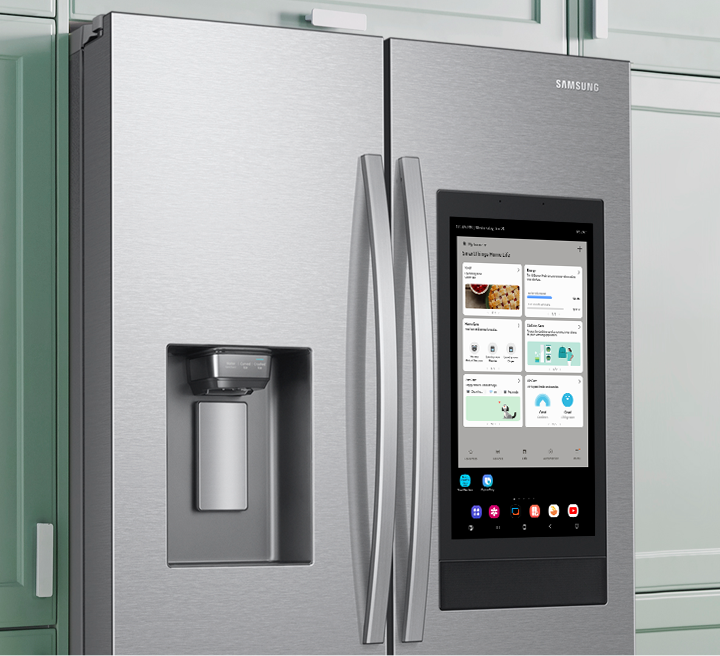
The SmartThings app helps control your Samsung smart refrigerator. It connects your fridge to Wi-Fi for easy management. Sometimes, the app may have trouble linking to your fridge. Troubleshooting the app can fix common connection problems fast.
Follow simple steps in the SmartThings app to update your settings and reconnect your fridge. These tips help restore Wi-Fi connection without hassle. Keep your fridge working smart and smooth.
Update Wi-fi Settings Via App
Open the SmartThings app on your phone or tablet. Go to the device list and select your refrigerator. Find the Wi-Fi settings option within the device menu. Check if the Wi-Fi network name matches your current router.
If the network changed, update it in the app. Enter the correct Wi-Fi password carefully. Save the changes and wait for the app to reconnect your fridge. This step often resolves connection problems quickly.
Reconnect Refrigerator To App
Try removing your refrigerator from the SmartThings app. To do this, select your device and choose the remove or forget option. After removal, restart your fridge and the app.
Open the app again and add your refrigerator as a new device. Follow the prompts to pair it with your Wi-Fi network. This clean connection process can fix many syncing issues. Make sure your phone stays close to the fridge during setup.
When To Contact Support
Knowing the right moment to contact support can save time and stress. Some problems need expert help beyond basic troubleshooting. If simple steps do not restore your Samsung smart refrigerator’s Wi-Fi, it is wise to reach out for assistance. Understanding when to call can prevent further issues and get your fridge back online faster.
Hardware Issues
Physical damage can stop your fridge from connecting to Wi-Fi. Faulty antennas, broken circuit boards, or damaged ports affect the connection. If your fridge shows error codes or strange noises, it might have hardware problems. In such cases, professional repair is necessary to fix the internal parts properly.
Complex Network Problems
Some network issues are hard to solve alone. Problems like IP conflicts, router firmware bugs, or advanced firewall settings block the connection. If your other devices connect fine but the fridge does not, this could be the reason. A network specialist or support team can help identify and fix these tough issues.
Samsung And Isp Support Options
Samsung offers dedicated support for smart appliance connectivity problems. Contact their customer service for guided help or repair service scheduling. Your internet service provider (ISP) also helps with network-related troubles. They can check router settings or signal issues affecting your fridge’s Wi-Fi connection. Using both supports ensures a complete solution.
Frequently Asked Questions
Why Is My Samsung Not Connecting To Wi-fi Anymore?
Your Samsung may not connect to Wi-Fi due to router issues, incorrect password, network settings errors, or interference. Restart your phone and router, toggle Wi-Fi or Airplane mode, forget and rejoin the network. Reset network settings if problems persist. Contact support for hardware issues.
How To Update Wi-fi On Samsung Fridge?
To update Wi-Fi on your Samsung fridge, open the SmartThings app, select your fridge, and choose the Wi-Fi settings. Follow prompts to connect to your new network. Restart the fridge if needed. Ensure your router is working properly for a smooth update.
How To Reset A Smart Samsung Refrigerator?
To reset a smart Samsung refrigerator, press and hold the Power and Ice Type buttons simultaneously for 10 seconds. The fridge will restart and reset its settings. This often fixes minor glitches and restores normal operation quickly.
How To Activate Samsung Fridge Wi-fi?
Press the fridge’s Wi-Fi button until the Wi-Fi icon blinks. Open the SmartThings app, add your fridge, and follow the on-screen prompts to connect. Ensure your phone and fridge use the same Wi-Fi network for successful activation.
Conclusion
Troubles with Samsung smart fridge Wi-Fi can feel frustrating. Start by restarting your router and refrigerator. Toggle Wi-Fi and airplane mode to reset connections quickly. Forget and reconnect to your Wi-Fi network to refresh the link. Check that Wi-Fi is on and airplane mode is off.
Reset network settings if simple fixes don’t work. Turn off any VPNs that might block the connection. Safe mode can reveal if apps cause problems. If Wi-Fi still won’t connect, contact Samsung support or your internet provider. Patience and these steps often restore your fridge’s smart features.

Hi, I’m the lead researcher and appliance enthusiast behind RefrigeratorSolve. With years of hands-on experience troubleshooting cooling systems and testing home appliances, I am dedicated to bringing you honest reviews, energy-saving tips, and practical solutions to keep your refrigerator running perfectly.