Imagine having your LG refrigerator not just keep your food fresh but also smartly manage its energy use and connect seamlessly to your home Wi-Fi. If you want to unlock the full potential of your fridge, learning how to use Smart Grid Wi-Fi on your LG refrigerator is key.
This feature lets your fridge communicate with your home energy system, helping you save on utility bills and control settings right from your phone. In this guide, you’ll discover simple, step-by-step instructions to connect your fridge to Wi-Fi, enable the Smart Grid function, and make the most of LG’s innovative ThinQ app.
Ready to transform your kitchen experience? Keep reading to master your LG refrigerator’s smart features today.
Setting Up Wi-fi On Lg Fridge
Setting up Wi-Fi on your LG refrigerator allows you to control and monitor it remotely. This feature improves convenience and energy management. Follow these simple steps to connect your fridge to your home network.
Checking Compatibility
Not all LG refrigerators support Wi-Fi connectivity. Check your model number and compare it with LG’s list of smart-enabled fridges. Look for the Wi-Fi or SmartThinQ logo on the fridge or in the user manual. This ensures your appliance can connect to the network and work with the LG ThinQ app.
Preparing Your Refrigerator
Power on your LG fridge and locate the Wi-Fi button on the control panel. Make sure the fridge is within range of your home Wi-Fi router. Reset the network settings if needed by holding the Wi-Fi button until the icon blinks. Keep the fridge door closed to avoid interruptions during setup.
Connecting To Home Network
Download the LG ThinQ app on your smartphone. Create an account or sign in to start the setup. Open the app and select “Add Device,” then choose “Refrigerator.” Follow the instructions to scan the QR code on your fridge or enter the model details manually. Select your home Wi-Fi network and enter the password. Wait for the connection to complete. The Wi-Fi icon on the fridge will stay lit once connected.
Using The Lg Thinq App
Using the LG ThinQ app allows you to connect your LG refrigerator to your home Wi-Fi. This connection helps you control and monitor the fridge remotely. You can adjust settings, receive alerts, and use smart grid features. The app makes managing your refrigerator easy and convenient.
Downloading And Installing
First, open the App Store or Google Play on your smartphone. Search for “LG ThinQ” and download the app. The app is free and works on both iOS and Android devices. After downloading, install the app by following the on-screen instructions.
Adding Your Refrigerator
Open the LG ThinQ app and sign in or create a new account. Tap the plus (+) sign to add a new device. Choose “Refrigerator” from the list of appliances. The app will guide you through the steps to connect your fridge to the Wi-Fi.
Scanning Qr Code Or Manual Setup
You can add your refrigerator by scanning the QR code on the fridge door. The app will detect the model and begin setup automatically. If you cannot scan the code, select manual setup. Enter the model number and follow the instructions to connect to Wi-Fi.
Activating Smart Grid Function
The Smart Grid function on your LG refrigerator helps manage energy use effectively. Activating this feature allows your fridge to connect with your home’s energy system. This connection helps save electricity and reduce bills. The process to activate Smart Grid is simple and quick.
Understanding how to turn it on and off, recognize the icons, and grasp its benefits will improve your refrigerator’s performance. Below are easy steps and tips to help you activate and use Smart Grid.
Turning Smart Grid On And Off
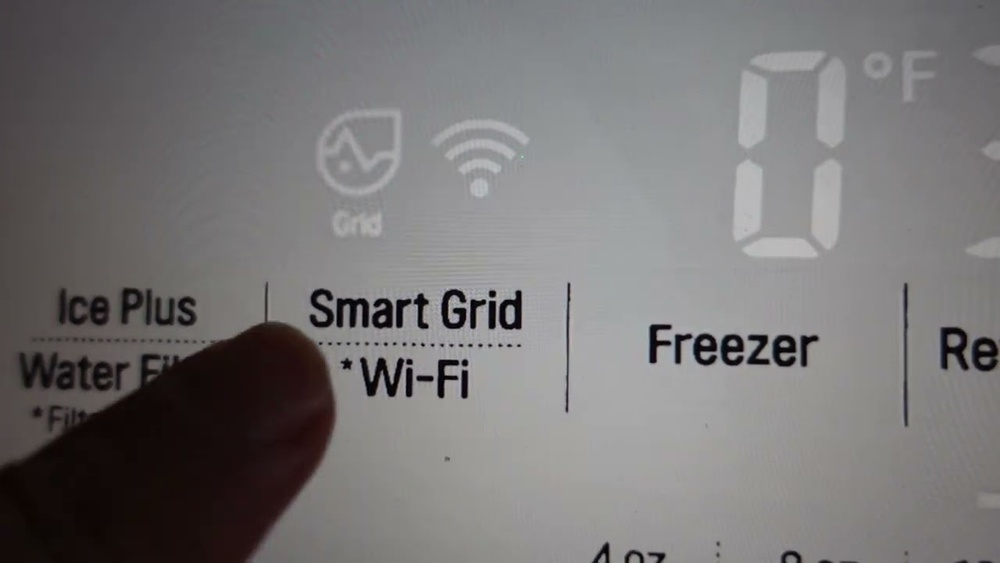
Press the Smart Grid button on your refrigerator’s control panel to toggle it on or off. When the feature is on, a light appears on the icon. If your fridge connects to Wi-Fi, Smart Grid may turn on automatically. You can switch it off anytime by pressing the button again.
Smart Grid Icon Indicators
The Smart Grid icon shows the function’s status clearly. A glowing icon means the feature is active. If the icon is off, Smart Grid is not working. Check the Wi-Fi connection if the icon does not light up after pressing the button.
Energy Optimization Benefits
Smart Grid adjusts the refrigerator’s energy use based on your home’s grid signals. It lowers power during peak hours and increases it when energy costs are low. This balance saves money and reduces environmental impact. Your fridge stays cool and efficient without extra effort.
Credit: www.pcguide.com
Controlling Refrigerator Via Wi-fi
Connecting your LG refrigerator to Wi-Fi opens many convenient features. You can control your fridge from anywhere using your smartphone. This connection helps you manage settings and monitor the appliance easily.
With the LG ThinQ app, you get real-time updates about your refrigerator. It makes daily tasks simple and helps save energy.
Monitoring Temperature And Status
Check the fridge and freezer temperatures anytime on your phone. The app shows current settings and alerts you if temperatures rise. This helps protect your food and avoid spoilage.
You can also see the door status remotely. If the door is left open, you get an instant notification. This feature gives peace of mind when you are away from home.
Remote Settings Adjustments
Change temperature settings without touching the fridge. The app lets you increase or decrease cooling levels easily. You can switch modes like Power Cool or Energy Saver with a tap.
Remote control means you can prepare your fridge before arriving home. Adjust settings for groceries or special events in advance. It saves time and keeps food fresh.
Using Voice Assistants
Connect your LG fridge with voice assistants like Google Assistant or Alexa. Use simple voice commands to check temperature or change settings. This hands-free control adds extra convenience in the kitchen.
Ask about the fridge status or activate modes without using your phone. Voice commands make managing your appliance quick and easy.
Troubleshooting Connection Issues
Connection issues with your LG refrigerator’s Smart Grid WiFi can disrupt smart features. These problems often arise from simple glitches. Most issues resolve quickly with basic troubleshooting. Follow these clear steps to restore your fridge’s WiFi connection smoothly.
Restarting Fridge And App
Turn off your LG refrigerator by unplugging it. Wait for about one minute. Plug it back in and switch it on. Close the LG ThinQ app on your phone completely. Open the app again to refresh the connection. Restarting both devices clears temporary errors. This step often fixes minor connectivity problems fast.
Enabling Bluetooth For Pairing
Bluetooth must be active on your phone for pairing. Go to your phone’s settings and turn on Bluetooth. Keep Bluetooth enabled while connecting to the fridge. The app uses Bluetooth to detect the refrigerator nearby. Without it, the WiFi setup cannot complete. Ensure Bluetooth stays on during the entire process.
Resetting Network Settings
Resetting network settings on your LG fridge removes old WiFi data. Find the network settings option in the fridge menu. Choose “Reset Network” or similar wording. Confirm the reset and wait for the fridge to restart. After restarting, reconnect to your WiFi network. Re-enter your WiFi password carefully. This clears any corrupted network info causing issues.

Credit: refrigeratorsolve.com
Maintaining Wi-fi Connection
Maintaining a strong Wi-Fi connection is key to using Smart Grid Wi-Fi on your LG refrigerator. A steady connection allows you to control and monitor the fridge remotely. It also ensures the Smart Grid features work efficiently to save energy and manage power usage.
Keeping the Wi-Fi connection stable requires regular care. Simple steps can help prevent disconnections and improve performance. Follow these tips to enjoy the full benefits of your smart refrigerator.
Regular Firmware Updates
Check for firmware updates often. LG releases updates to fix bugs and improve Wi-Fi stability. Use the LG ThinQ app to see if your fridge needs an update. Installing updates keeps the system running smoothly. It also adds new features and improves security.
Ensuring Stable Network
Place your router close to the refrigerator. Walls and appliances can block Wi-Fi signals. Use a strong and reliable internet connection. Avoid too many devices on the same network. Restart your router if the connection drops. This simple step can refresh your network and fix minor issues.
Security Tips
Use a strong password for your Wi-Fi network. Avoid default or easy-to-guess passwords. Change your password regularly to keep hackers out. Enable WPA3 or WPA2 encryption on your router. This protects your data and smart devices from threats. Do not share your Wi-Fi password with strangers. Protect your smart fridge and home network.

Credit: refrigeratorsolve.com
Frequently Asked Questions
How To Turn On Smart Grid On Lg Refrigerator?
Press the Smart Grid button on your LG refrigerator to turn it on. The icon lights up when active. Smart Grid also activates automatically when connected to Wi-Fi.
How To Use Lg Smart Fridge Wi-fi?
To use LG smart fridge Wi-Fi, download the LG ThinQ app. Enable Bluetooth, connect your phone to Wi-Fi, scan the fridge QR code or add manually. Follow app prompts to complete setup. Use the app to control and monitor your fridge remotely.
How Does Wi-fi Work On An Lg Refrigerator?
Wi-Fi on an LG refrigerator connects via the LG ThinQ app. It allows remote control, monitoring, and smart energy management. Users connect the fridge to home Wi-Fi and control settings, receive alerts, and optimize performance through the app.
What Does Smart Grid Do On Lg Refrigerators?
Smart Grid on LG refrigerators connects the fridge to your home’s energy grid. It optimizes energy use and reduces utility bills efficiently.
Conclusion
Using Smart Grid WiFi on your LG refrigerator makes daily life easier. It helps save energy and lowers electricity bills. Connecting the fridge to WiFi lets you control settings remotely. The setup process is simple and quick to follow. Enjoy the convenience of monitoring your fridge from anywhere.
Stay connected and keep your food fresh with smart technology. This small step improves your kitchen’s efficiency and comfort. Start using Smart Grid WiFi today and see the difference.

Hi, I’m the lead researcher and appliance enthusiast behind RefrigeratorSolve. With years of hands-on experience troubleshooting cooling systems and testing home appliances, I am dedicated to bringing you honest reviews, energy-saving tips, and practical solutions to keep your refrigerator running perfectly.