Setting up your LG Smart Grid WiFi Refrigerator may seem tricky at first, but you’re just a few simple steps away from turning your fridge into a powerful smart appliance. Imagine controlling temperature settings, receiving maintenance alerts, and saving energy—all from your phone.
This guide will walk you through each step clearly and quickly, so you can enjoy all the smart features without hassle. Ready to get your LG fridge connected and working smarter for you? Let’s dive in.
Prepare For Setup
Preparing your LG Smart Grid WiFi Refrigerator for setup ensures a smooth connection. Follow simple steps to get ready before starting the installation process. This helps avoid common issues and saves time.
Check Wi-fi Requirements
Confirm your home Wi-Fi supports 2.4 GHz frequency. LG refrigerators often do not connect to 5 GHz networks. Ensure your signal is strong near the fridge location. A weak signal may cause connection problems.
Download Lg Thinq App
Get the LG ThinQ app from the App Store or Google Play. This app controls your fridge remotely and helps with setup. Installing it ahead of time speeds up the connection process.
Create Lg Account
Open the LG ThinQ app and sign up for a new account. Use a valid email and create a strong password. Having an account ready helps link your fridge to LG’s smart services quickly.

Credit: www.youtube.com
Register Your Refrigerator
Registering your LG Smart Grid WiFi Refrigerator is the first step to enjoy smart features. This process links your fridge with the ThinQ app. It lets you control and monitor your fridge remotely. Registration also helps in receiving updates and alerts.
Follow simple steps to complete the registration. It takes only a few minutes. Make sure your smartphone is connected to the internet before starting.
Open Thinq App
Start by opening the LG ThinQ app on your smartphone. If you do not have it, download it from the app store. The app works on both Android and iOS devices. Log in or create a new account to proceed. The app dashboard will show options to add new appliances.
Add New Appliance
Tap on the “Add Appliance” button in the app. The app will ask you to select the appliance type. Choose “Refrigerator” from the list. The app may request permission to access your location or scan QR codes. Allow these for a smooth setup process.
Enter Model Details
Next, enter the model number of your LG refrigerator. You can find this number on the fridge label or user manual. Typing the exact model helps the app fetch the right settings. Confirm the details and follow the on-screen instructions to complete registration.
Connect To Wi-fi
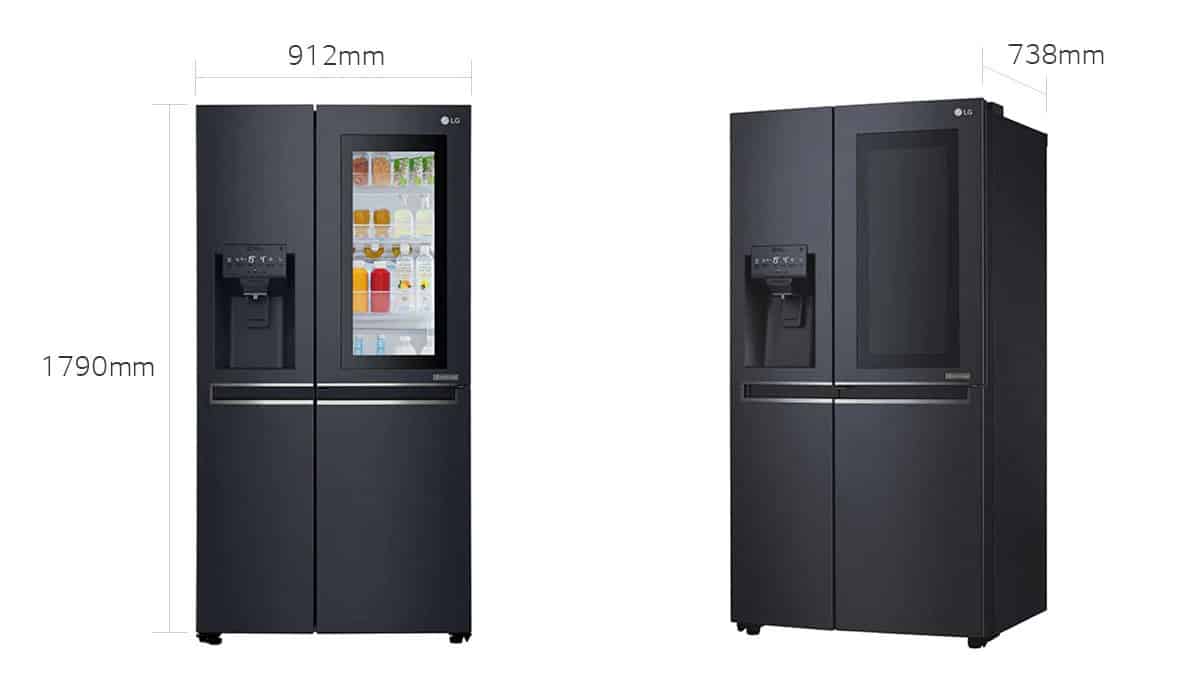
Connecting your LG Smart Grid WiFi refrigerator to your home network is essential. It allows you to control and monitor the fridge remotely using the LG ThinQ app. The setup is simple and takes only a few minutes. Follow these steps to ensure your fridge stays connected and works smoothly.
Select Network
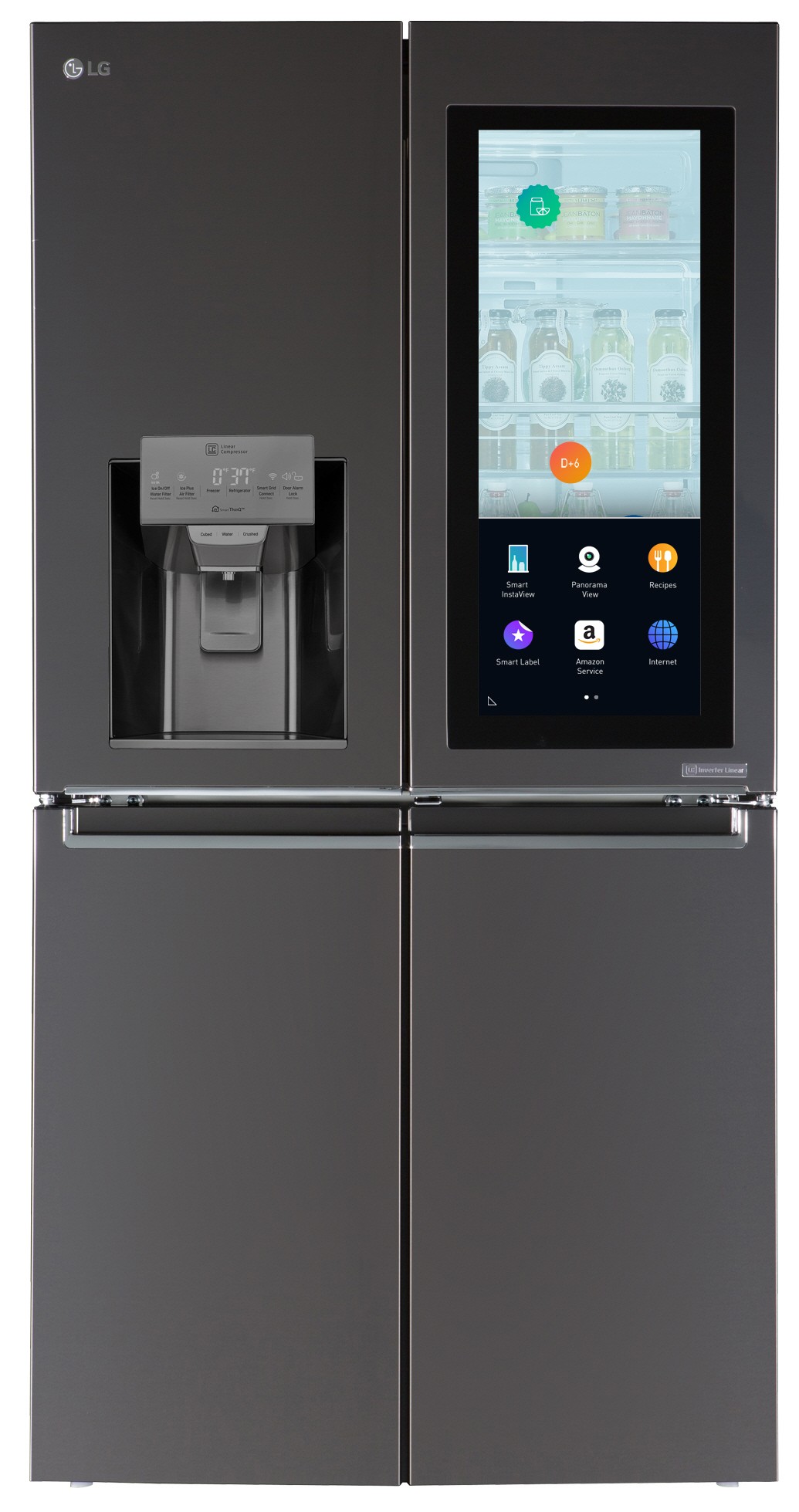
Start by opening the fridge’s control panel. Find and select the Wi-Fi settings option. The fridge will scan for available networks nearby. Choose your home Wi-Fi network from the list. Make sure you select the correct network to avoid connection issues.
Enter Password
After selecting your network, the fridge will ask for the password. Use the control panel’s keypad to enter your Wi-Fi password carefully. Passwords are case-sensitive, so double-check each character. Entering the wrong password will prevent the fridge from connecting.
Confirm Connection
Once you enter the password, the fridge will try to connect to your network. Wait a few moments for the confirmation message. The control panel will display a success notification if the connection works. Your LG Smart Grid WiFi refrigerator is now online and ready to use with the app.
Credit: www.pcguide.com
Enable Smart Grid Feature
Enabling the Smart Grid feature on your LG Smart Grid WiFi Refrigerator helps you save energy and reduce costs. This feature lets your fridge communicate with your local power grid. It adjusts energy use during peak times automatically. Setting it up is simple and improves your appliance’s efficiency.
Access Smart Grid Settings
Start by opening the LG ThinQ app on your smartphone. Connect your refrigerator to the app if not done yet. Go to the device list and select your fridge. Find the “Smart Grid” option in the settings menu. Tap to open and review the available options.
Activate Demand Response
Demand Response helps your fridge reduce energy during peak hours. Enable this feature inside the Smart Grid settings. This allows your fridge to receive signals from your utility company. Your fridge will adjust its cooling cycle to save power when needed.
Monitor Grid Status
Keep track of your grid’s status through the app. The Smart Grid section shows real-time updates about energy demand. You can see when the fridge is in energy-saving mode. Monitoring helps you understand your energy use and benefits from Smart Grid features.
Troubleshoot Connection Issues
Connection problems with your LG Smart Grid WiFi Refrigerator can stop you from using smart features. Fixing these issues is simple if you follow the right steps. This guide helps you troubleshoot common Wi-Fi problems fast. You do not need technical skills to try these solutions.
Check Router Status
First, look at your Wi-Fi router. Make sure it is turned on and working well. Check if other devices can connect to the internet through the router. If many devices are connected, the router may slow down. Try restarting the router by unplugging it for 30 seconds and then plugging it back in. This often fixes minor network problems.
Reset Refrigerator Wi-fi
If the router is fine, reset the fridge’s Wi-Fi connection. On your LG refrigerator, find the Wi-Fi settings in the menu. Turn off the Wi-Fi, wait a few seconds, then turn it back on. You can also remove the saved network and add it again. This clears any connection errors and lets the fridge try to connect fresh.
Update Firmware
Old software can cause connection issues. Check if your LG fridge firmware is up to date. Go to the settings menu and look for a firmware update option. If an update is available, download and install it. The latest firmware improves performance and fixes bugs that block Wi-Fi connections.
Credit: arstechnica.com
Use Smart Features
Using the smart features of your LG Smart Grid WiFi refrigerator makes daily life easier. These features give you control and information right on your phone. They help save energy and keep your fridge running smoothly. Explore how to use these smart tools effectively.
Remote Temperature Control
Adjust the fridge and freezer temperatures from anywhere. Use the LG ThinQ app on your phone. Change settings without opening the fridge door. This helps keep food fresh and saves energy. Receive alerts if temperatures go out of range. Perfect for busy days or vacations.
Receive Maintenance Alerts
Get notifications about your fridge’s health. The app tells you when parts need checking or replacing. Avoid unexpected breakdowns with early warnings. Follow simple steps in the app to fix minor issues. Keep your refrigerator working at its best all year.
Access Energy Usage Reports
View detailed reports on how much energy your fridge uses. The app shows daily and monthly consumption. Understand which settings save the most power. Use this data to reduce electricity bills. Stay eco-friendly without sacrificing performance.
Manage Lg Thinq App
The LG ThinQ app is your main tool to control and monitor your LG Smart Grid WiFi Refrigerator. It connects your fridge to your smartphone, giving you easy access to its features. Managing the app helps you customize settings and get the most from your smart appliance.
Through the app, you can receive alerts about your refrigerator’s status and energy use. It also allows you to control temperature settings remotely. Managing the app ensures your fridge works efficiently and fits your lifestyle.
Adjust Notification Preferences
Open the LG ThinQ app and go to settings. Here, you can choose which notifications you want to receive. Set alerts for door open, temperature changes, or filter replacement. This helps you stay informed without feeling overwhelmed by messages.
You can turn off notifications that are not important to you. Customize alerts so they match your daily routine. This way, you only get updates that matter.
Add Additional Appliances
The LG ThinQ app supports multiple LG smart devices. To add more appliances, open the app and select “Add Device.” Follow the steps to connect new products like washers or ovens. This keeps all your appliances in one place for easy control.
Adding more appliances helps you monitor your entire smart home. You can check the status and adjust settings for all connected devices from one app. This makes managing your smart home simple and efficient.
Explore Subscription Options
The LG ThinQ app is free with basic features like remote control and alerts. Some premium services require a subscription. These may include extended warranties, expert maintenance, or advanced content.
Explore these options in the app to see if they fit your needs. Subscriptions can add extra convenience and care for your appliances. Choose what works best for you without any pressure.
Frequently Asked Questions
What Is The Smart Grid On My Lg Refrigerator?
The Smart Grid on your LG refrigerator lets it receive energy-saving signals from your utility company. It reduces power use during peak hours. This helps lower energy costs and supports efficient electricity use. The feature activates automatically when your fridge connects to Wi-Fi and utility signals.
Why Won’t My Lg Thinq Connect To Wi-fi?
Your LG ThinQ may not connect to Wi-Fi due to router issues, weak signal, incorrect password, or network interference. Restart your router and device. Ensure Wi-Fi settings are correct and your network supports 2. 4 GHz frequency. Update the ThinQ app and device firmware for better connectivity.
Is There A Monthly Fee For Lg Thinq?
No, LG ThinQ app and its core features like remote control and monitoring are free. Optional subscriptions for premium services may have monthly fees.
What Does Smart Grid Mean On My Lg Fridge?
Smart Grid on your LG fridge lets it receive energy-saving signals from your utility during peak times. It reduces power use automatically. The “Grid” icon lights up when responding to these signals, helping lower electricity costs and support efficient energy use.
Conclusion
Setting up your LG Smart Grid WiFi refrigerator is simple and useful. Connecting it to WiFi lets you control it remotely with ease. You can monitor energy use and get alerts on your phone. Following the steps carefully helps avoid common problems.
Enjoy the convenience of managing your fridge anytime, anywhere. This smart appliance saves energy and makes life easier. Take your time and connect your fridge for the best results.

Hi, I’m the lead researcher and appliance enthusiast behind RefrigeratorSolve. With years of hands-on experience troubleshooting cooling systems and testing home appliances, I am dedicated to bringing you honest reviews, energy-saving tips, and practical solutions to keep your refrigerator running perfectly.