Imagine having a refrigerator that not only keeps your food fresh but also helps you manage your groceries, plan meals, and even entertain your family. That’s exactly what the Samsung Smart Refrigerator offers.
If you’re wondering how to unlock all these smart features and make your kitchen truly connected, you’re in the right place. This guide will walk you through everything you need to know to use your Samsung Smart Refrigerator like a pro — from setting it up and connecting to the SmartThings app, to exploring features like AI-powered inventory and voice control.
Get ready to transform your daily routine and bring convenience right to your fingertips. Keep reading to discover how your fridge can become the smartest helper in your home.
Credit: www.samsung.com
Connecting To Smartthings
Connecting your Samsung Smart Refrigerator to the SmartThings app lets you control your fridge remotely. It helps you check the fridge status, manage settings, and get alerts on your phone. The process is simple and takes just a few steps.
Enabling Wi-fi On The Fridge
First, turn on the Wi-Fi on your Samsung Smart Refrigerator. Go to the fridge’s main screen and open the settings menu. Find the Wi-Fi option and switch it on. Choose your home Wi-Fi network and enter the password. Wait for the fridge to connect to the internet. A confirmation message will appear once it is connected.
Pairing With The Smartthings App
Download the SmartThings app on your smartphone from the app store. Open the app and sign in or create a Samsung account. Tap “Add Device” and select “Refrigerator” from the list. Follow the on-screen instructions to find your fridge. The app will connect to your fridge over Wi-Fi. After pairing, you can control and monitor the fridge remotely.
Managing Multiple Devices
You can add more Samsung smart devices to the SmartThings app. This lets you control all devices from one place. Tap “Add Device” anytime to link new appliances. Group devices by room for easy management. Use the app to set routines and automate tasks. Managing multiple devices becomes simple and organized.
Credit: www.youtube.com
Navigating The Family Hub Screen
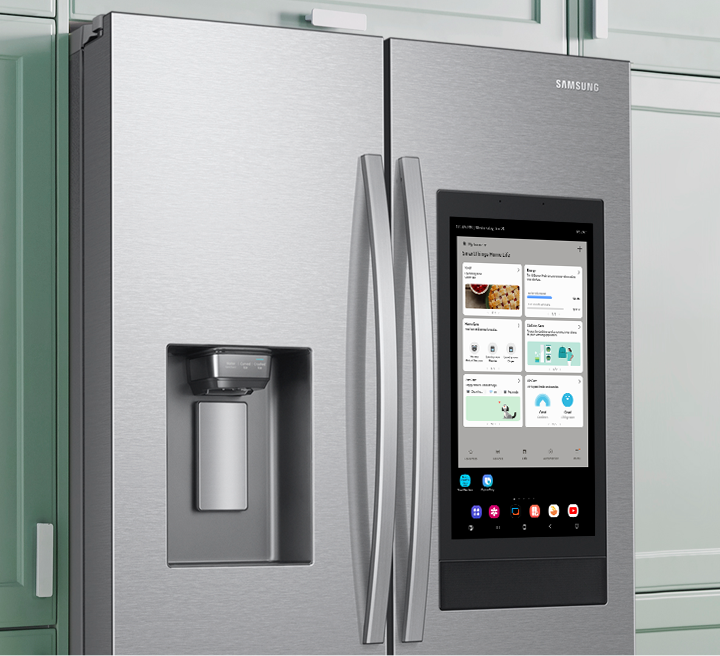
Navigating the Family Hub screen on your Samsung Smart Refrigerator is simple and fun. The screen acts like a smart tablet built into your fridge. It helps you manage your kitchen and family tasks all in one place. Understanding how to move around the screen makes using your fridge easier every day.
Accessing The Home Screen
Turn on the Family Hub screen by pressing the power button or tapping the screen. The home screen shows you the main apps and widgets. It is the starting point for all functions. From here, you can open your calendar, notes, weather, and more. The home screen is easy to find and use anytime.
Using Touch And Swipe Gestures
The Family Hub screen responds to touch and swipe gestures. Tap an icon to open an app or widget. Swipe left or right to move between different screens. Swipe down to open the quick settings menu. These simple gestures help you move fast and find what you need. The screen is made to be smooth and responsive.
Customizing Widgets And Apps
You can change the home screen to fit your needs. Tap and hold a widget to move or remove it. Add new widgets by selecting the “+” icon on the screen. Choose the apps you use most to keep them handy. Customizing the screen makes your fridge more personal and useful every day.
Managing Food Inventory
Managing food inventory in your Samsung smart refrigerator helps reduce waste and saves money. The fridge uses smart features to track your food items automatically. It lets you check what you have inside without opening the door. This section explains how to use these smart tools to keep your food organized and fresh.
Using Ai Vision Inside™
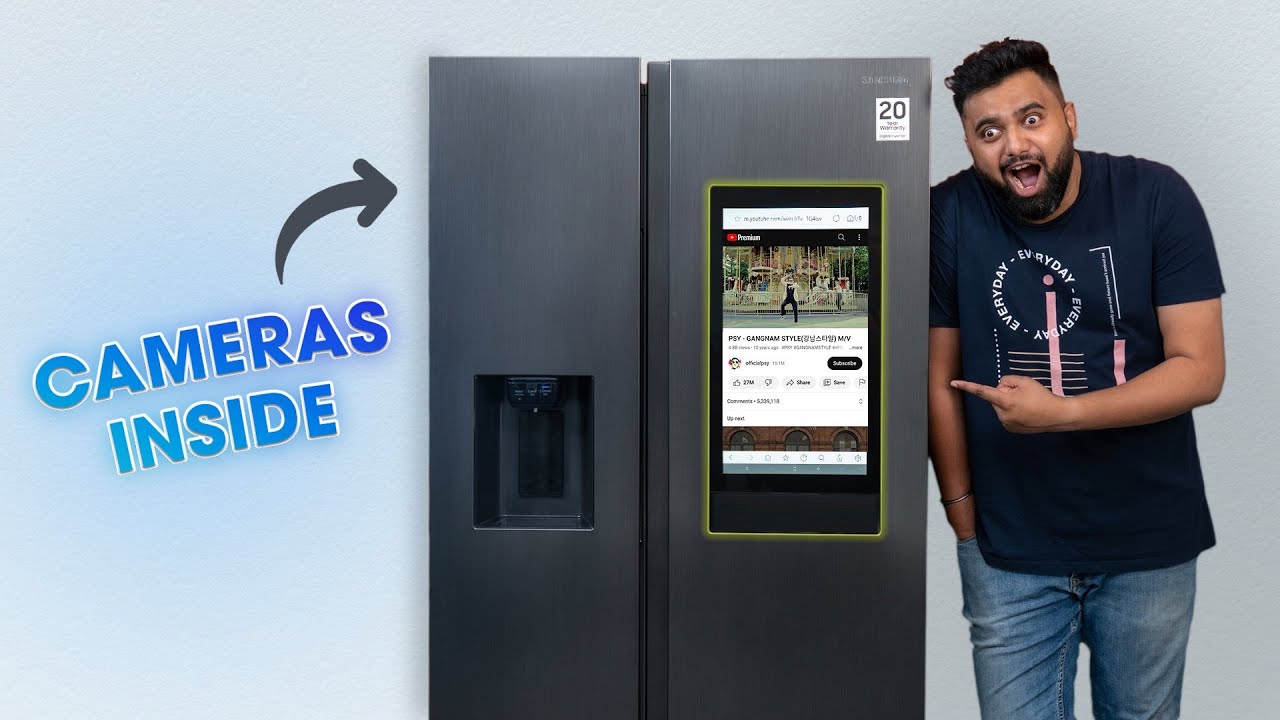
AI Vision Inside™ uses cameras to scan your fridge’s contents. It recognizes food items and adds them to the inventory list. The system updates automatically when you add or remove items. This feature helps you know what you have without opening the fridge. It makes meal planning easier and faster.
Viewing Contents Remotely
You can see inside your fridge using your smartphone. The Samsung SmartThings app connects to your fridge. Open the app to view the food inside anytime, anywhere. This helps when you are shopping and unsure what to buy. It prevents buying duplicates and reduces food waste.
Setting Expiration Alerts
The fridge can remind you before food expires. It tracks expiration dates based on the items it detects. You get alerts on the fridge screen or phone app. These reminders help you use food on time and avoid spoilage. You can enjoy fresher meals and save money.
Creating And Sharing Shopping Lists
Creating and sharing shopping lists on your Samsung Smart Refrigerator simplifies meal planning. You can add items quickly, keep everyone in the loop, and even connect to online stores. This feature helps avoid forgotten groceries and saves time on shopping trips.
Adding Items Via Voice Or Screen
Use the fridge’s touchscreen to type your shopping needs. Speak directly to the fridge using the built-in voice assistant. Simply say the items you want to add. The fridge listens and updates your list instantly. This hands-free option is perfect when your hands are busy.
Syncing Lists With Family Members
Share your shopping list with family members easily. Connect the fridge to the SmartThings app on phones and tablets. Everyone can see the list and add or remove items. Syncing keeps the whole family organized and informed. It reduces duplicate purchases and forgotten items.
Integrating With Online Grocery Services
Link your shopping list to popular online grocery stores. Choose items from your list and order directly through the fridge’s screen. Online integration saves time and offers home delivery options. This feature makes grocery shopping convenient and efficient.
Planning Meals With Smart Recipes
Planning meals with Samsung Smart Refrigerator brings ease and fun to your kitchen. The smart recipes feature helps you find dishes that match your ingredients and taste. It saves time and reduces food waste by suggesting meals based on what you have. Your fridge becomes a helpful cooking partner.
Browsing Recipe Suggestions
Use the fridge touchscreen to browse many recipe ideas. The smart system shows recipes tailored to your stored ingredients. You can filter by meal type, diet, or difficulty. Each recipe includes simple steps and cooking time. This makes meal prep smoother and faster.
Creating Custom Meal Plans
Create meal plans that fit your week and family needs. Add favorite recipes or new dishes to your plan. The fridge keeps track of your choices and suggests balanced meals. It also helps organize grocery lists based on your meal plan. Planning meals becomes less stressful and more organized.
Accessing Cooking Videos
Watch step-by-step cooking videos directly on the fridge screen. Videos show clear instructions to guide you through each recipe. This helps especially with new or complex dishes. You can pause or rewind videos anytime while cooking. Visual aid improves your cooking confidence and skills.
Controlling Temperature And Settings
Controlling the temperature and settings of your Samsung Smart Refrigerator is simple. It helps keep your food fresh and saves energy. You can customize different zones and activate special modes for quick cooling or energy saving. Adjusting these options lets you get the most out of your smart fridge.
Adjusting Cooling Zones
Your Samsung smart fridge has separate cooling zones. Each zone can have its own temperature setting. Open the fridge touchscreen or use the SmartThings app. Select the zone you want to change. Slide the temperature bar to your preferred level. This feature keeps fruits, veggies, and meats fresh longer.
Activating Power Cool And Freeze
Power Cool quickly lowers the fridge temperature. It is helpful when you add many new groceries. To activate, tap the Power Cool button on the screen or app. Power Freeze works the same but for the freezer. Use it to freeze items faster or make more ice quickly. Both modes turn off automatically after a set time.
Setting Vacation And Energy Modes
Vacation mode saves energy while you are away. It keeps the fridge running at a low temperature to avoid spoilage. Turn on Vacation mode from the settings menu. Energy mode reduces power use during normal use. It adjusts cooling cycles to save electricity. Both modes help lower your energy bills without risking food safety.
Using Voice Assistants
Using voice assistants with your Samsung Smart Refrigerator makes kitchen tasks easier. Speak simple commands to control features without touching the screen. Voice control saves time and keeps your hands free while cooking or cleaning. It also helps manage grocery lists, check fridge status, and interact with other smart devices in your home.
Setting Up Alexa And Bixby
Start by connecting your fridge to Wi-Fi. Open the SmartThings app on your phone. Follow prompts to link your Samsung account with Alexa or Bixby. Enable the Samsung Smart Refrigerator skill in the Alexa app for voice control. For Bixby, activate it directly on the fridge screen. Confirm voice assistant activation by speaking the wake word. This setup lets you use voice commands instantly.
Voice Commands For Fridge Functions
Use voice commands to check the fridge temperature or adjust settings. Ask about the contents inside or set reminders for expiration dates. Add items to your shopping list by saying them aloud. Control the ice maker or change the fridge light level with simple phrases. Voice commands work smoothly and respond quickly, making daily use convenient and efficient.
Integrating With Other Smart Devices
Connect your fridge with other smart home devices through SmartThings. Link it to smart lights, ovens, or speakers to create routines. For example, ask Bixby to turn on the kitchen lights and check the fridge status simultaneously. You can also sync it with smart displays to view recipes or calendar events. Integration enhances your smart home experience and keeps everything connected.
Updating Software And Troubleshooting
Keeping your Samsung Smart Refrigerator’s software updated ensures smooth performance and access to the latest features. Troubleshooting common issues quickly restores its functions without delay. Understanding how to update firmware and reset settings helps maintain your fridge in top shape.
Checking For Firmware Updates
Open the fridge screen and go to the Settings menu. Select “Support” or “Software Update.” The fridge will check for new firmware versions online. If an update is available, follow the on-screen instructions to download and install it. Keep your fridge connected to Wi-Fi for smooth updates. Regular updates improve security and add new features.
Performing A Factory Reset
Resetting the fridge restores factory settings and clears errors. Navigate to Settings, then choose “General” or “Reset.” Select “Factory Reset” and confirm your choice. The fridge will restart and erase custom settings. Use this only if other fixes fail. Back up important data like shopping lists before resetting.
Contacting Samsung Support
Samsung Support helps with unresolved problems or technical questions. Visit the Samsung website or use the SmartThings app to contact support. Provide your fridge model and a clear description of the issue. Support agents can guide you through advanced troubleshooting or arrange service if needed. Keep your purchase receipt handy for warranty claims.
Credit: www.cnet.com
Frequently Asked Questions
How Does The Samsung Smart Fridge Work?
Samsung smart fridges use AI Vision Inside™ to recognize and manage ingredients automatically. Connect via SmartThings app to control settings and view inside remotely. The Family Hub touchscreen offers recipes, meal planning, and shopping lists. Alexa integration enables voice commands and smart reordering.
How Do I Set Up My Samsung Smart Refrigerator?
Press the Fridge button until “AP” shows on the display. Open the SmartThings app, tap Samsung, then Family Hub, and start setup. Choose your location and room to complete the process. Connect to Wi-Fi to enable smart features and control your fridge remotely.
What Can I Do With My Samsung Smart Fridge?
You can view inside your fridge remotely, plan meals, access recipes, manage groceries, and control settings via the SmartThings app. Alexa integration helps with shopping lists and smart reorders. The AI Vision system tracks ingredients automatically for smarter food management.
How Do I Control My Samsung Fridge?
Control your Samsung fridge via the SmartThings app. Connect it by pressing the Fridge button until “AP” shows. Manage temperature, view inside, and adjust settings remotely.
Conclusion
Using your Samsung Smart Refrigerator makes kitchen life easier and more organized. Connect it to the SmartThings app for remote control and updates. Check inside your fridge anytime using your phone or the screen. Plan meals and create shopping lists with simple taps.
Enjoy fresh food longer by managing temperature and inventory smartly. Explore all features step-by-step to get the most out of your fridge. Small actions can save time and reduce food waste daily. Start using these tips to enjoy a smarter kitchen experience today.

Hi, I’m the lead researcher and appliance enthusiast behind RefrigeratorSolve. With years of hands-on experience troubleshooting cooling systems and testing home appliances, I am dedicated to bringing you honest reviews, energy-saving tips, and practical solutions to keep your refrigerator running perfectly.