
Is your Samsung smart refrigerator acting up or showing errors on the display? Sometimes, all it takes is a simple reset to get everything back to running smoothly.
Whether your fridge isn’t cooling properly, the touchscreen is frozen, or the filter light won’t reset, knowing how to reset your Samsung smart refrigerator can save you time and frustration. In this guide, you’ll discover easy-to-follow steps that anyone can do—no technical skills required.
Keep reading to regain full control of your fridge and enjoy fresh, perfectly chilled food once again!
Credit: www.homedepot.com
Power Cycle Reset
The power cycle reset is a simple way to fix minor issues with your Samsung smart refrigerator. It refreshes the system by turning the power off and on. This reset can solve problems like frozen screens, temperature errors, or connectivity glitches.
Performing a power cycle reset takes only a few minutes. It helps the refrigerator clear temporary faults and start fresh. Follow these clear steps to reset your fridge safely and correctly.
Unplugging The Refrigerator
First, locate the power cord at the back of the fridge. Gently unplug the refrigerator from the wall outlet. Wait for about one to two minutes. This pause allows the internal system to fully power down. Avoid pressing any buttons during this time.
Plugging Back In
After waiting, plug the refrigerator back into the outlet. Make sure the plug fits securely. The fridge will begin its startup process. Watch for the display panel to light up again. This shows the system is rebooting properly.
Adjusting Temperature Settings
Once powered on, check the temperature settings inside the fridge. Adjust the cooling levels to your preferred temperatures. Use the control panel buttons or touchscreen to set values. Proper temperature settings help keep your food fresh and safe.
Control Panel Reset
The control panel on a Samsung smart refrigerator is the main interface for settings and functions. Sometimes, the panel may freeze or stop responding. A control panel reset can fix these issues quickly. Resetting the panel clears minor glitches without affecting the fridge’s cooling system.
Below are easy methods to reset the control panel. These steps help restore normal operation fast.
Button Combination Resets
Press and hold specific buttons together to reset the control panel. The exact buttons vary by model but often include “Power Freeze” and “Power Cool.”
Hold the buttons for about 10 seconds until the panel restarts. This soft reset can clear frozen or unresponsive screens.
Do not unplug the fridge for this method. It only resets the control panel, not the entire refrigerator.
Resetting Frozen Displays
If the display is frozen and unresponsive, try a control panel reset first. Use the button combination reset to unlock the screen.
If that does not work, unplug the refrigerator from the wall outlet for 30 seconds. Plug it back in to perform a full power cycle reset.
This method resets both the control panel and the cooling system. It often fixes deeper issues causing frozen displays.
Family Hub Reset
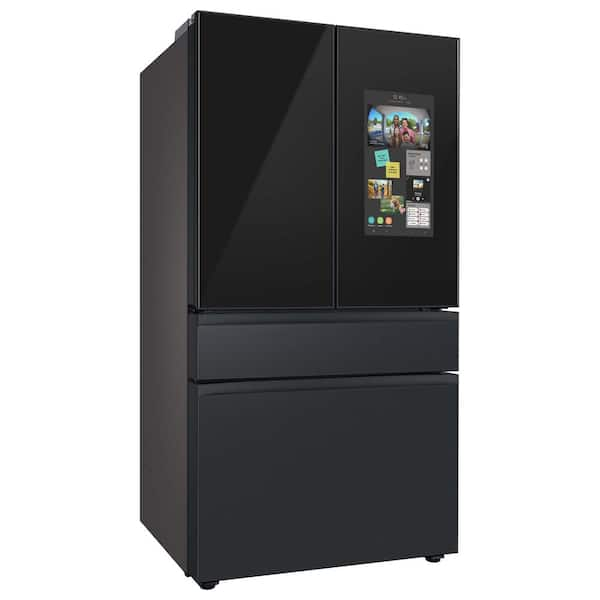
The Family Hub reset is essential when your Samsung smart refrigerator acts up. It helps fix glitches and restore smooth operation. Resetting can be simple or thorough, depending on the issue.
Use resets carefully to avoid losing important information saved on the fridge.
Soft Reset Options
A soft reset restarts the Family Hub without deleting data. Press and hold the power button on the screen for about 10 seconds. The screen will turn off and then back on. This refreshes the system and can solve minor bugs quickly.
If the screen is frozen, unplug the fridge for one minute, then plug it back in. This power cycle resets the electronics safely without erasing your settings.
Factory Data Reset Steps
A factory data reset erases all personal data and restores original settings. To start, go to Settings on the Family Hub screen. Select About Family Hub, then Factory data reset. Confirm your choice and wait while the fridge resets.
This reset is useful for severe issues or before selling the fridge. It removes all user accounts, apps, and preferences, returning the fridge to its original state.
Caution For Data Loss
Resetting the Family Hub may delete saved calendars, photos, and notes. Back up important data before doing a factory reset. Soft resets do not erase data but may not fix deep problems.
Use factory reset only as a last resort. Losing stored information can be inconvenient and time-consuming to restore.
Filter Light Reset
The filter light on your Samsung smart refrigerator shows when the water filter needs changing. Resetting this light helps the fridge track filter usage correctly. It keeps your water clean and fresh by reminding you to replace the filter on time.
Resetting the filter light is simple. It clears the alert so the fridge knows you installed a new filter. This step is important after every filter replacement to avoid constant warnings.
Resetting Water Filter Indicator
First, locate the water filter reset button on the control panel. Press and hold this button for about 3 seconds. The filter light will blink and then turn off, showing the reset is complete.
Some Samsung models use the “Alarm” or “Filter Reset” button for this. Check your manual if unsure. After resetting, the fridge counts the filter’s lifespan again from zero.
Clearing Red Filter Light
The red filter light signals that the filter needs immediate changing. After replacing the filter, clear this light to stop the alert. Hold the reset button until the red light disappears.
If the light stays on, try unplugging the fridge for 5 minutes. Plug it back in and press the reset button again. This clears any software glitches causing the red light.
Troubleshooting Screen Issues
Screen issues can disrupt your Samsung smart refrigerator’s performance. Addressing these problems quickly keeps your fridge running smoothly. This section covers key steps to fix common touchscreen problems.
Fixing Frozen Touchscreen
A frozen touchscreen often means the panel is unresponsive. Start by cleaning the screen with a soft, dry cloth. Dirt or moisture can cause touch errors.
Next, try a soft reset. Hold the power button on the display for about 10 seconds. The screen will turn off and then back on.
If the screen remains frozen, unplug the refrigerator for 5 minutes. This disconnects all power and clears minor glitches. Plug it back in and check the screen again.
Restarting The Display Panel
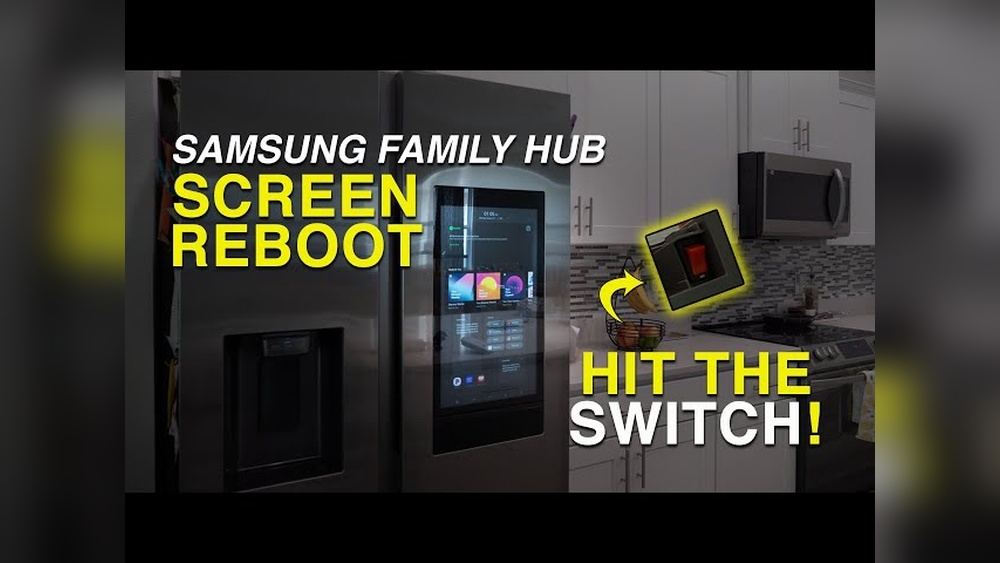
Restarting the display panel can fix many display errors. Locate the power switch behind the display or inside the fridge.
Turn off the display panel using this switch. Wait 30 seconds before turning it back on. This resets the panel without affecting the fridge’s cooling.
In some models, pressing and holding both the volume up and down buttons for 10 seconds restarts the panel. Check your manual for button combinations.
After restarting, the screen should respond normally. If issues continue, consider contacting Samsung support for service options.
Credit: www.samsung.com
Hard Reset Tips
Hard reset tips are essential for troubleshooting Samsung smart refrigerators effectively. A hard reset can fix many issues that a soft reset cannot. It forces the appliance to fully restart, clearing temporary glitches. Use these tips to perform a proper hard reset safely and successfully.
Why Unplugging Works Best
Unplugging the refrigerator cuts off all power completely. This action clears the internal memory and resets the system. It helps the appliance reboot fresh without any lingering errors. Power interruptions or frozen controls often need this full power cycle. Simply turning off the fridge with the button may not reset the cooling system. Unplugging ensures the entire appliance restarts properly.
Avoiding Soft Reset Pitfalls
Soft resets usually involve pressing buttons or using the control panel. They only restart the display or control board but not the whole fridge. This partial reset may not fix deeper issues like cooling problems or sensor errors. Relying on soft resets alone can waste time and cause frustration. Avoid skipping the hard reset step to fully refresh your Samsung smart refrigerator.
Safety Measures
Resetting your Samsung Smart Refrigerator can fix many issues. Safety is important during this process. Taking proper measures protects you and your appliance. Follow these guidelines to keep everything safe and secure.
Reset Precautions
Always unplug the refrigerator before starting a reset. This prevents electric shock and damage. Avoid using wet hands when handling the appliance. Do not force buttons or open panels roughly. Wait at least five minutes before plugging it back in. This pause helps the system reset properly.
Protecting Your Data
Samsung Smart Refrigerators store personal settings and preferences. A reset may erase these details. Backup important data like shopping lists or calendar notes. Use the Samsung app to save your information. Consider writing down key settings before resetting. This ensures you can restore them later without hassle.

Credit: www.youtube.com
Frequently Asked Questions
How Do I Restart My Samsung Smart Fridge?
Unplug your Samsung smart fridge from the power outlet. Wait 30 seconds, then plug it back in to restart. For Family Hub models, use Settings > About Family Hub > Factory data reset to perform a full reset if needed.
How Do I Force My Samsung Fridge To Reset?
Unplug your Samsung fridge from the power outlet. Wait 5 minutes, then plug it back in. For Family Hub, go to Settings > About > Factory data reset to perform a full reset. Use factory reset cautiously, as it deletes all data.
How Do I Factory Reset My Samsung With Side Buttons?
To factory reset your Samsung using side buttons, turn off the device. Hold Volume Up, Home, and Power buttons together. Release Power when it vibrates. Keep holding Volume Up and Home until recovery mode appears. Select “Wipe data/factory reset” using volume buttons, then confirm with Power button.
How To Do A Hard Reset On A Refrigerator?
Unplug the refrigerator from the power outlet. Wait 5 minutes, then plug it back in. This completes a hard reset.
Conclusion
Resetting your Samsung smart refrigerator keeps it running smoothly. Follow simple steps like unplugging and using control panel options. A proper reset can fix many common issues quickly. Remember to avoid factory reset unless necessary, as it erases all settings.
Regular maintenance and timely resets help extend your fridge’s life. Stay calm and take one step at a time. Your fridge will be back to normal in no time. Keep this guide handy for easy troubleshooting whenever needed.

Hi, I’m the lead researcher and appliance enthusiast behind RefrigeratorSolve. With years of hands-on experience troubleshooting cooling systems and testing home appliances, I am dedicated to bringing you honest reviews, energy-saving tips, and practical solutions to keep your refrigerator running perfectly.

One Response