Setting up your Samsung Smart Refrigerator might feel a bit overwhelming at first, but it doesn’t have to be. Imagine controlling your fridge from your phone, managing groceries effortlessly, and enjoying perfectly chilled food every day.
This guide is designed just for you—to make the setup process simple, quick, and hassle-free. By following easy steps, you’ll unlock the full potential of your smart fridge and start enjoying all its amazing features right away. Ready to turn your kitchen into a smart hub?
Let’s dive in and get your Samsung Smart Refrigerator up and running!

Credit: www.samsung.com
Unboxing And Placement
Unboxing and placing your Samsung Smart Refrigerator correctly is essential for optimal performance. It ensures the appliance works efficiently and lasts longer. Careful handling during unboxing prevents damage. Proper placement helps maintain ideal cooling and easy access.
Follow these simple steps to set up your new smart fridge right from the start.
Choosing The Right Spot
Select a location with enough space for the fridge door to open fully. Avoid direct sunlight or heat sources like ovens and radiators. Place the fridge on a flat, stable surface to support its weight. Ensure there is good air circulation around the back for proper cooling.
Keep the spot near an electrical outlet to avoid long extension cords. Make sure the floor can hold the refrigerator’s weight safely. Check for enough room to clean behind and around the unit easily.
Leveling The Refrigerator
Check the fridge is level side to side and front to back. Use a spirit level tool for accuracy. Adjust the leveling legs at the front by turning them clockwise or counterclockwise.
Proper leveling prevents door alignment issues and helps the compressor work efficiently. It also stops unwanted noises and vibrations. After leveling, gently push the fridge back into place without tilting it.

Credit: www.youtube.com
Initial Setup Steps
Setting up your Samsung smart refrigerator starts with a few important initial steps. These steps ensure your fridge works well and lasts long. Follow these simple instructions carefully for the best start. Proper setup also helps keep your food fresh and safe.
Allowing The Fridge To Settle
After delivery, leave the fridge upright for at least 2 hours. This lets the refrigerant and oil inside settle properly. Avoid tilting or moving the fridge during this time. Setting it up too soon can cause damage. Waiting helps the fridge cool efficiently once powered on.
Plugging In And Powering On
Once settled, plug the fridge into a grounded outlet. Make sure the power source matches the fridge’s voltage needs. Turn the power on using the main switch or control panel. The fridge will start its cooling cycle automatically. Do not open the doors frequently during the first few hours to keep the cold air inside.
Cooling And Temperature Settings
Proper cooling and temperature settings keep your Samsung Smart Refrigerator working well. They protect your food and save energy. Setting the right temperatures is simple and quick.
Understanding how to manage these settings helps you enjoy fresh food longer. It also avoids waste and keeps the fridge running smoothly.
Waiting For Optimal Cooling
After plugging in your fridge, wait before adding any food. The cooling system needs time to reach the right temperature. This wait usually takes about 2 to 4 hours. Adding food too early can raise the temperature inside. This makes the fridge work harder and wastes energy. Let the fridge cool down fully to keep your food fresh and safe.
Adjusting Fridge And Freezer Temperatures
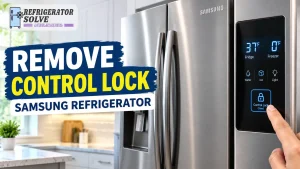
Use the control panel to set temperatures for both fridge and freezer. The fridge should be set between 37°F and 40°F (3°C to 4°C). The freezer works best at 0°F (-18°C). Adjust settings based on your food storage needs. Some Samsung models allow you to customize zones for different items. Check the manual for specific instructions. Keep an eye on the display to ensure the temperatures stay steady.
Connecting To Wi-fi
Connecting your Samsung smart refrigerator to Wi-Fi is essential for accessing all its smart features. This connection allows the fridge to sync with apps, receive updates, and enable remote control. The process is simple and quick, ensuring your appliance stays connected and functional.
Accessing Network Settings
Start by opening the refrigerator’s main screen. Tap the “Settings” icon to enter the menu. Scroll down and select “Network” or “Wi-Fi” settings. Here, you will see available wireless networks. Choose your home Wi-Fi network from the list. Enter your Wi-Fi password carefully. Confirm to connect. The fridge will notify you once it joins the network successfully.
Troubleshooting Connectivity
Sometimes the fridge may fail to connect to Wi-Fi. First, check if your Wi-Fi is working on other devices. Restart your router and the fridge. Make sure the fridge is within range of your Wi-Fi signal. Remove any obstacles or electronic devices causing interference. Update the fridge’s software if prompted. If problems continue, reset the network settings and try connecting again. Contact Samsung support if issues persist.
Using The Smartthings App
The SmartThings app lets you control your Samsung smart refrigerator easily. It connects your fridge to your phone. This connection gives you quick access to many features. You can check the temperature, receive alerts, and manage settings remotely. Using the app saves time and keeps your food fresh.
Adding Your Refrigerator
First, download the SmartThings app from your phone’s app store. Open the app and sign in or create an account. Tap the plus (+) icon to add a new device. Select “Refrigerator” from the list of appliance types. Choose your Samsung refrigerator model. Follow the on-screen steps to connect it to your Wi-Fi network. Once connected, your fridge will appear in the app dashboard. Now you can control it from anywhere.
Managing Settings Via App
Open the SmartThings app and select your refrigerator. You can adjust the temperature for the fridge and freezer compartments. Set alerts for door open or filter replacement. Use the app to switch modes like Vacation or Power Cool. The app also lets you check the status of your fridge. Change settings anytime without touching the refrigerator. This control helps keep your food safe and fresh.
Setting Up Family Hub Features
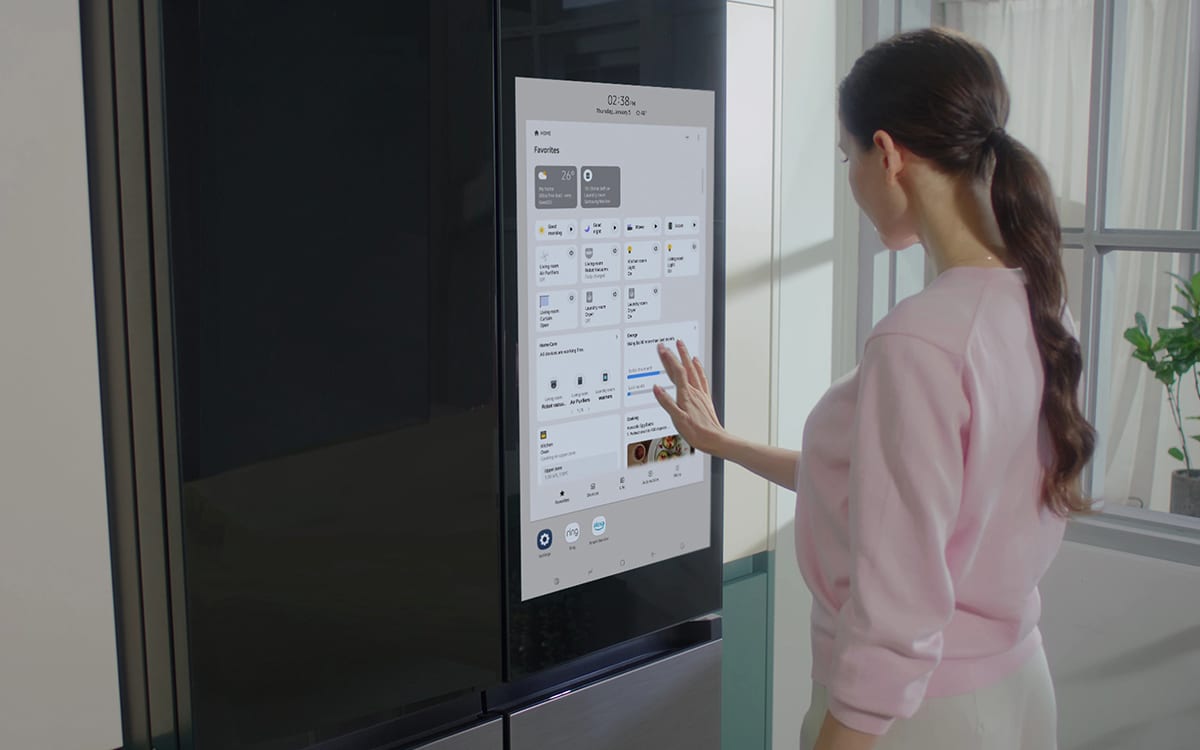
The Samsung Family Hub turns your refrigerator into a smart home center. Setting up its features helps your family stay connected and organized. The process is simple, even for beginners. Start by creating user profiles and then customize the screen and notifications. This makes the fridge more personal and useful for everyone.
Creating User Profiles
Each family member can have a unique profile on the Family Hub. Tap the settings icon on the main screen. Select “Users” and then “Add User.” Enter a name and choose a picture or icon. This helps identify who is using the fridge. Profiles save personal preferences like calendars and notes. It also keeps information private and organized.
Customizing Screen And Notifications
The Family Hub screen can show photos, calendars, and weather updates. Go to the settings menu and pick “Display.” Choose a background image or slideshow from your phone or USB. Adjust the brightness and screen timeout to save energy. Set notification preferences for things like grocery reminders or calendar alerts. This way, the fridge sends helpful updates without being annoying.
Managing Food Inventory
Managing your food inventory in a Samsung Smart Refrigerator helps reduce waste and saves money. The smart features allow easy tracking of all food items inside your fridge. You can quickly see what you have and what needs to be used soon. This keeps your kitchen organized and meals planned.
Using the built-in tools, you stay informed about your groceries without guesswork. The system helps you avoid expired products and keeps food fresh longer. This section explains how to use the inventory tracker and set expiration alerts.
Using The Inventory Tracker
The inventory tracker lets you add items by scanning barcodes or typing names. It stores details like quantity, purchase date, and storage location. You can update it anytime you add or remove food. The screen shows a clear list of all items in your fridge.
This feature helps you know exactly what you have at a glance. It reduces the chance of buying duplicates. You also avoid forgetting items hidden in the back of the fridge.
Setting Expiration Alerts
The fridge can send alerts when food is near its expiration date. You can set custom alerts for different types of items. These notifications remind you to use or remove food before it goes bad.
Expiration alerts help you plan meals and reduce waste. They keep your food fresh and safe to eat. You can adjust alert timing to fit your shopping habits and preferences.
Resetting And Troubleshooting
Resetting and troubleshooting are key to keeping your Samsung smart refrigerator running smoothly. These steps help solve common problems and restore settings. Simple resets can fix many issues without professional help. Understanding how to reset and troubleshoot saves time and avoids frustration.
Performing A Factory Reset
Start by opening the fridge’s main menu on the touchscreen. Navigate to Settings and select “Reset.” Choose “Factory Reset” to erase all custom settings. Confirm the action to begin the reset process. This returns the fridge to its original factory state. Use this option if the fridge has major software issues. The reset may take several minutes to complete. After resetting, reconnect your Wi-Fi and set preferences again.
Common Issue Fixes
If the fridge touchscreen freezes, try restarting it by unplugging the fridge. Wait 30 seconds and plug it back in. For Wi-Fi connection problems, check your home router and signal strength. Restart the router if needed. Make sure the fridge software is updated to the latest version. Strange noises may signal an obstructed fan or dirty condenser coils. Clean coils gently and remove any blockages. Temperature issues often come from incorrect settings or door seals. Adjust the temperature settings and inspect door seals for damage or gaps.
Credit: www.reliant.co.uk
Frequently Asked Questions
How Do I Set Up My Samsung Smart Refrigerator?
Plug in your Samsung smart refrigerator and turn it on. Connect it to Wi-Fi via the Family Hub app. Set location and room. Adjust temperature settings as needed. Your fridge is now ready to use.
How Long Do You Have To Wait Before You Put Food In A New Refrigerator?
Wait at least 2 to 4 hours after plugging in your new refrigerator before adding food. This allows proper cooling.
How Do I Connect My Phone To My Samsung Refrigerator?
Open the SmartThings app on your phone. Select “Add device,” choose your Samsung refrigerator model, then follow on-screen setup instructions. Connect both devices to the same Wi-Fi network to sync and control your fridge remotely.
How Do I Reset My Samsung Smart Fridge?
To reset your Samsung smart fridge, press and hold the Power Freeze and Power Cool buttons simultaneously for 10 seconds. The fridge will restart and reset to default settings.
Conclusion
Setting up your Samsung smart refrigerator is easier than it seems. Follow each step carefully to connect and customize your fridge. Wait for it to reach the right temperature before adding food. Doing this keeps your groceries fresh and safe.
Enjoy the convenience and smart features that make life simpler. Stay patient and take your time for the best results. Your smart fridge will serve you well for years ahead.

Hi, I’m the lead researcher and appliance enthusiast behind RefrigeratorSolve. With years of hands-on experience troubleshooting cooling systems and testing home appliances, I am dedicated to bringing you honest reviews, energy-saving tips, and practical solutions to keep your refrigerator running perfectly.