Your LG Smart Diagnosis Refrigerator is packed with features designed to make your life easier, but only if you know how to connect and use them properly. Imagine quickly troubleshooting issues or managing your fridge settings right from your phone, saving you time and stress.
If you’ve ever wondered how to get started with this smart technology, you’re in the right place. This guide will walk you through simple, step-by-step instructions to connect your LG Smart Diagnosis Refrigerator to your smartphone effortlessly. By the end, you’ll be confident in using your fridge’s smart features to their fullest potential.
Keep reading, and unlock the true power of your LG smart appliance!

Credit: www.youtube.com
Prepare Your Phone And Fridge
Preparing your phone and fridge is the first step to connect your LG Smart Diagnosis refrigerator. Proper setup ensures smooth communication between devices. This preparation helps avoid errors and saves time during connection. Follow simple steps to get your phone and fridge ready for pairing.
Enable Wi-fi And Bluetooth
Turn on Wi-Fi on your smartphone to allow internet access. Activate Bluetooth to enable device discovery and pairing. Both Wi-Fi and Bluetooth must be active for the LG ThinQ app to work. Check your phone’s settings and switch on these features before starting.
Check Fridge Compatibility
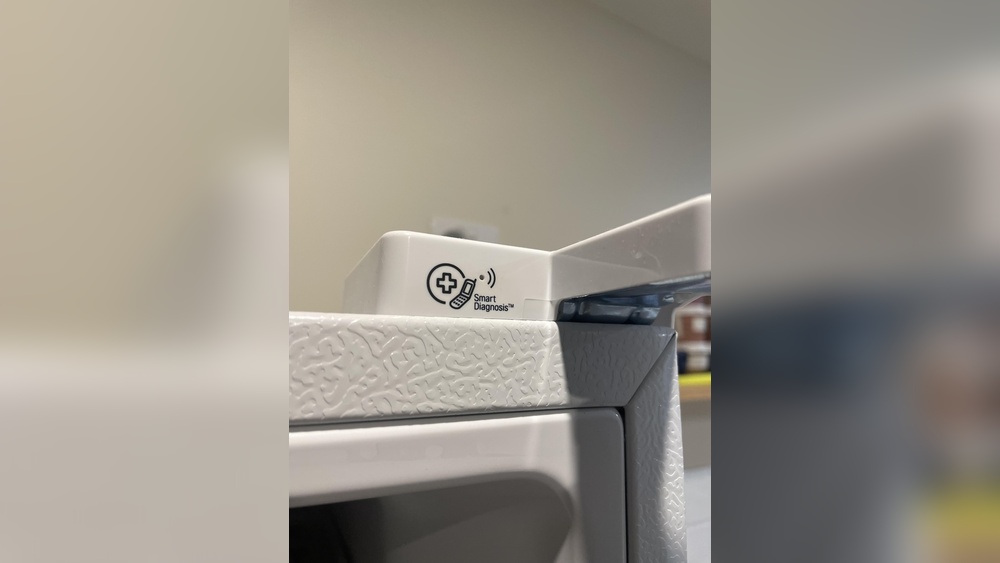
Verify that your LG refrigerator supports Smart Diagnosis and ThinQ app connection. Look for the Wi-Fi or Smart Diagnosis logo on the fridge. Use the model number to confirm compatibility on LG’s official website. Only compatible models connect successfully and provide smart features.
Set Up Lg Thinq App
Setting up the LG ThinQ app is the first step to connect your LG Smart Diagnosis refrigerator. This app allows you to control your fridge from your phone. It also helps diagnose issues quickly. Follow these simple steps to get started with the LG ThinQ app.
Download And Install
Go to the App Store on your iPhone or the Google Play Store on your Android device. Search for “LG ThinQ.” Find the official app by LG Electronics. Tap the download or install button. Wait for the app to finish installing on your phone. Open the app once installed to start the setup process.
Create Or Log Into Account
Open the LG ThinQ app. You will see options to create a new account or log into an existing one. To create an account, enter your email and a strong password. Follow the prompts to verify your email address. If you already have an LG account, simply enter your login details. Logging in lets you access all features easily.
Connect Wi-fi Enabled Models
Connecting your LG Smart Diagnosis Refrigerator to Wi-Fi lets you monitor and control it remotely. This connection helps you get alerts, troubleshoot problems, and optimize your fridge’s performance. Follow simple steps to link your Wi-Fi enabled model using the ThinQ app.
Open Thinq And Add Device
Start by opening the LG ThinQ app on your smartphone. Make sure your phone’s Wi-Fi and Bluetooth are turned on. Tap the ‘+’ icon to add a new device. This prepares the app to find your refrigerator and begin the setup process.
Scan Qr Code Or Select Model
Look inside your refrigerator door for a QR code label. Use the ThinQ app to scan this code. If you cannot scan it, choose your fridge model manually from the list provided in the app. This step connects the app to your specific refrigerator model.
Complete Pairing Process
Follow the on-screen instructions to finish pairing. The app will prompt you to connect the fridge to your home Wi-Fi network. Enter your Wi-Fi password carefully. Once connected, the app confirms the successful link. Your fridge is now ready for smart diagnosis and remote control.

Credit: www.youtube.com
Use Smart Diagnosis On Non-wi-fi Models
Using Smart Diagnosis on LG refrigerators without Wi-Fi helps solve issues fast. This feature sends appliance information through sound. Your smartphone captures this sound and shares data with LG support. Follow simple steps to use Smart Diagnosis on non-Wi-Fi models.
Activate Smart Diagnosis Mode
Start by finding the Smart Diagnosis button on your fridge. Press and hold this button for a few seconds. The fridge will enter diagnosis mode and emit a sound signal. Make sure the fridge is powered on and the door is closed during this process.
Position Phone Microphone
Hold your smartphone close to the Smart Diagnosis logo or speaker. Place the phone’s microphone near the sound source. Keep the phone steady to catch the data clearly. Avoid background noise to prevent interference with the signal.
Transfer Audible Data
Open the LG ThinQ app on your phone and select Smart Diagnosis. The app will listen for the sound from the fridge. Keep the phone in position until the app confirms data transfer. This process sends important fridge information to LG for analysis.
Troubleshoot Connection Issues
Connection issues can stop your LG Smart Diagnosis Refrigerator from working properly. Troubleshooting these problems is simple and fast. Follow clear steps to fix common errors and get your fridge connected again. This helps keep your smart features running smoothly and saves time.
Check Network And App Updates
Confirm your Wi-Fi network is stable and has a strong signal. Weak or unstable connections cause problems. Make sure your phone and fridge are on the same network. Open the LG ThinQ app and check for updates. Using the latest app version improves connection and fixes bugs.
Restart Devices
Turn off your refrigerator and unplug it for 30 seconds. Restart your smartphone too. Power cycling resets the devices and clears temporary glitches. After restarting, try connecting the fridge to the app again. This step often solves minor connection errors quickly.
Contact Lg Support
If problems persist, reach out to LG customer service. They provide expert advice and can guide you step-by-step. Have your model number and app details ready. LG Support helps identify hardware or software issues that need repair or replacement.
Credit: woolyyarn.com
Maximize Features With Thinq App
The LG ThinQ app offers many ways to get more from your Smart Diagnosis refrigerator. It brings control and information right to your phone. This app helps you keep track of your fridge’s health and settings. It makes daily use simpler and smarter. Using ThinQ, you can stay updated and manage your fridge from anywhere.
Monitor Fridge Status
The ThinQ app shows your fridge’s current status in real time. You can check the temperature and humidity levels anytime. It also displays if the door is open or closed. This helps keep your food fresh and safe. Monitoring your fridge is easy, even if you are away from home.
Receive Maintenance Alerts
The app sends alerts when your fridge needs attention. It warns about filter replacements or unusual temperatures. These alerts help you act quickly and avoid bigger problems. Staying informed means your fridge works at its best longer. Maintenance alerts save you time and repair costs.
Control Settings Remotely
Adjust settings without being near your fridge. The ThinQ app lets you change temperature and modes remotely. You can switch to vacation mode or quick freeze with a tap. This feature adds convenience and energy savings. Control your fridge easily from your smartphone, wherever you are.
Frequently Asked Questions
How To Connect Lg Smart Diagnosis Refrigerator?
Download and open the LG ThinQ app. Enable Wi-Fi and Bluetooth on your phone. Tap ‘+’ in the app and add your fridge by scanning its QR code or selecting the model. For non-Wi-Fi models, press the Smart Diagnosis button, place your phone’s microphone near the fridge speaker, and transmit data.
How Do I Connect My Phone To My Lg Refrigerator?
Ensure your phone’s Wi-Fi and Bluetooth are on. Open the LG ThinQ app, tap ‘+’, and select ‘Add Device’. Scan the fridge’s QR code or choose the model manually to connect.
How To Enter Diagnostic Mode On Lg Refrigerator?
Press and hold the “Energy Saver” and “Freezer” buttons simultaneously for 5 seconds. The diagnostic mode will activate, showing error codes on the display. Use this mode to check your LG refrigerator’s system status quickly and effectively.
What App Do I Use For Lg Smart Diagnosis?
Use the LG ThinQ app for LG Smart Diagnosis. It enables easy appliance control, smart care, and troubleshooting on your smartphone.
Conclusion
Connecting your LG Smart Diagnosis refrigerator is simple and fast. Follow the steps carefully for your model type. Using the ThinQ app helps you control and monitor your fridge easily. Keep your phone near the fridge during the process for better results.
Once connected, you can enjoy smart features and quick troubleshooting. Stay patient and double-check each step if problems arise. This connection makes managing your fridge more convenient and stress-free. Give your LG refrigerator the smart support it needs today.

Hi, I’m the lead researcher and appliance enthusiast behind RefrigeratorSolve. With years of hands-on experience troubleshooting cooling systems and testing home appliances, I am dedicated to bringing you honest reviews, energy-saving tips, and practical solutions to keep your refrigerator running perfectly.