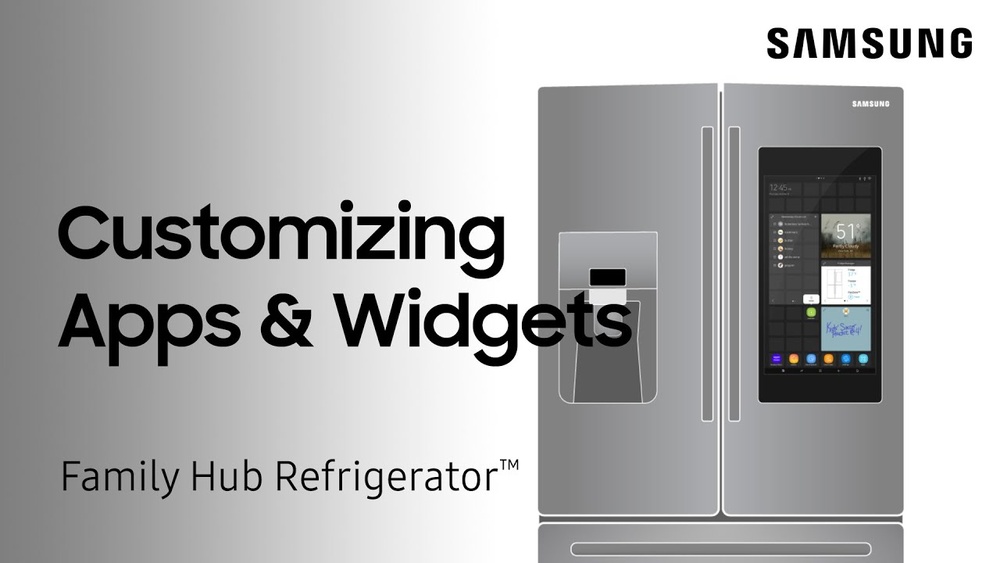
Your Samsung Smart Refrigerator is more than just a fridge—it’s a hub for convenience, entertainment, and smart living. But did you know you can make it even smarter by adding apps tailored to your lifestyle?
Whether you want to keep track of your groceries, stream recipes, or control smart home devices right from your kitchen, adding apps to your Samsung Family Hub opens up a world of possibilities. In this guide, you’ll learn simple, step-by-step instructions to find, download, and install apps on your Samsung smart fridge.
Ready to unlock your fridge’s full potential? Keep reading and turn your kitchen into a true smart home command center.
Accessing The Apps Menu
Accessing the Apps Menu on your Samsung Smart Refrigerator is the first step to personalize your device. It allows you to explore and install various apps that enhance your kitchen experience. Navigating to this menu is simple and quick.
Once you access the Apps Menu, you will see a range of pre-installed and downloadable apps. These apps help you manage groceries, stream media, and even control smart home devices. Let’s look at the ways to open this menu easily.
Swipe Up From Home Screen
Start at the home screen of your Samsung Smart Refrigerator. Use your finger to swipe up from the bottom of the screen. This gesture reveals the Apps Menu instantly. It is a smooth and natural motion that anyone can do. This method works on all Family Hub models.
After swiping up, the screen displays all available apps. You can scroll to find new apps or access the ones you use often. It keeps your apps organized and easy to reach.
Locating The Apps Icon
If swiping up does not work or feels tricky, find the Apps icon on the home screen. It looks like a small grid or square with dots inside. Tap this icon once to open the Apps Menu.
The icon stays in the same place for quick access. Remember this spot for faster app management. Tapping the icon shows all installed apps and options to download more.
Browsing The Samsung Apps Store
Browsing the Samsung Apps Store on your smart refrigerator is simple and fun. It lets you find useful apps to improve your kitchen experience. The store offers many apps designed for Family Hub refrigerators. These apps help with meal planning, entertainment, and even smart home control.
Explore the Apps Store at your own pace. Discover new tools that fit your lifestyle. The clear layout makes navigation easy for everyone. Follow the steps below to start browsing like a pro.
Opening The Apps Store
Start at the Family Hub home screen on your fridge. Swipe up from the bottom to open the Apps menu. Look for the “Apps Store” icon and tap it. This will launch the Samsung Apps Store. Wait a moment while the store loads fully. You can now see all available apps for your fridge.
Exploring App Categories
The Apps Store sorts apps into clear categories. Examples include Food & Drink, Entertainment, and Smart Home. Tap any category to see related apps. This helps you find apps that match your needs quickly. You can scroll through each category to explore all options. Each app shows a brief description and user rating.
Using The Search Function
The search bar sits at the top of the Apps Store screen. Tap the search icon to activate it. Type the app name or keyword you want. The search results update as you type. Select the app you want from the list. This saves time if you know exactly what you need. The search function works well for both popular and niche apps.
Installing Apps On Family Hub
The Samsung Family Hub refrigerator offers a smart experience by allowing you to install apps directly on its touchscreen. These apps help with meal planning, entertainment, and staying organized in the kitchen. Installing apps on the Family Hub is simple and adds more features to your smart fridge. Follow the steps below to install and manage apps efficiently.
Selecting An App To Install
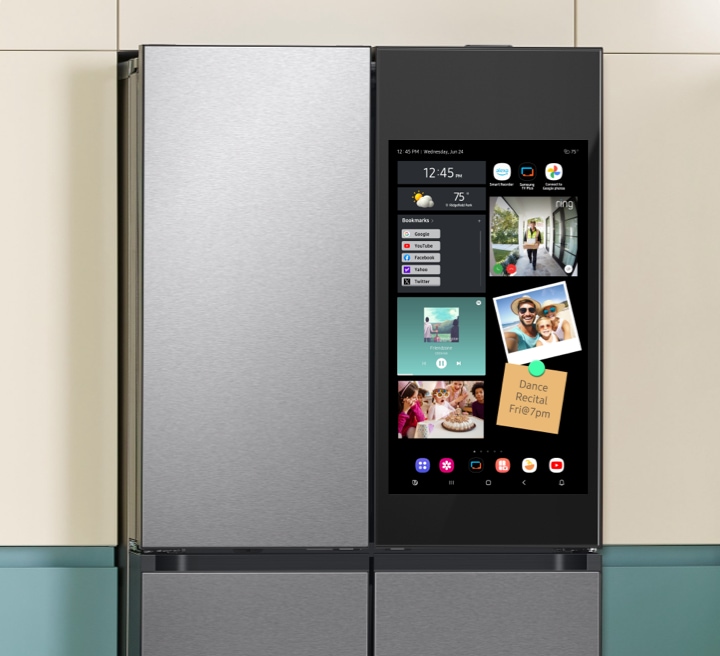
Start by swiping up from the bottom of the Family Hub screen to open the Apps menu. Scroll through the available apps to find one that fits your needs. Some apps are pre-installed, while others are ready to download. Tap on the app icon to see more details and check if it is free or requires payment.
Starting The Installation
Once you select an app, tap the “Install” button located below the app icon or in the app details page. The installation will begin automatically. Make sure your refrigerator is connected to Wi-Fi to avoid interruptions. A progress bar or notification will show the download and installation status.
Verifying Installation Success
After installation completes, return to the Apps menu. Look for the new app icon among your installed apps. Tap the app to open it and test if it works properly. If the app opens without errors, the installation was successful. Restart the Family Hub screen if the app does not appear immediately.
Credit: www.samsung.com
Connecting To Samsung Account And Wi-fi
Connecting your Samsung Smart Refrigerator to your Samsung account and Wi-Fi is essential before adding apps. This connection allows seamless app downloads and access to smart features. It also keeps your fridge updated with the latest software. Follow the steps below to get connected quickly and easily.
Setting Up Wi-fi Connection
Start by opening the Settings menu on your fridge’s touchscreen. Find the Network or Wi-Fi section. Select your home Wi-Fi network from the list shown. Enter the Wi-Fi password carefully using the on-screen keyboard. Tap Connect to join the network. Wait a few moments until the fridge confirms it is connected. A strong Wi-Fi signal is needed for smooth app downloads and updates.
Signing Into Samsung Account
Access the Settings menu again and look for the Samsung Account option. Tap Sign In to enter your Samsung account credentials. If you do not have an account, tap Create Account and follow the prompts to register. Signing in links your fridge to your Samsung ecosystem. This step is necessary to download apps and sync your device with other Samsung products.
Managing Installed Apps
Managing installed apps on your Samsung smart refrigerator helps keep the device personalized and efficient. You can easily open apps, remove those you no longer need, and organize the layout for quick access. This keeps the screen tidy and improves your daily use.
Regular app management ensures your fridge runs smoothly and matches your lifestyle. The following steps explain how to handle installed apps effectively.
Opening Installed Apps
Start at the home screen of your Samsung smart refrigerator. Swipe up from the bottom to reveal the apps menu. Tap the icon of the app you want to open. The app will launch quickly, ready for use.
Use this method to check your calendar, weather, or recipes. Opening apps is simple and fast, making daily tasks easier.
Removing Unwanted Apps
To remove apps, access the apps menu by swiping up. Find the app you want to delete. Press and hold the app icon until options appear. Select “Remove” or “Uninstall” to delete the app.
Removing unused apps frees up space. It also keeps your screen less cluttered and easier to navigate.
Organizing App Layout
Organize your apps for quick access by rearranging their icons. In the apps menu, press and hold an app icon. Drag it to the position you prefer and release it. Repeat this for other apps as needed.
Arrange your most-used apps at the top or in easy-to-reach spots. This saves time and enhances your experience.
Credit: www.samsung.com
Updating Apps And Software
Keeping your Samsung Smart Refrigerator’s apps and software up to date ensures smooth performance. Updates fix bugs, add new features, and improve security. Regular updates help your fridge work efficiently and keep apps running without issues.
Understanding how to update apps and firmware on your smart fridge is simple. You can update apps manually or set them to update automatically. Firmware updates also play a key role in maintaining your device’s health.
Manual App Updates
To update apps manually, open the Apps menu on your fridge’s touchscreen. Look for available updates indicated by a notification or icon. Select the app that needs updating and tap the “Update” button. Wait for the process to finish before using the app again. Manual updates give control over which apps get updated and when.
Enabling Automatic Updates
Automatic updates save time by keeping apps current without your input. Find the settings menu on your fridge and locate the app update options. Turn on “Automatic Updates” to allow your fridge to download and install app updates automatically. This keeps apps fresh and ready to use without manual checks.
Updating Refrigerator Firmware
Firmware updates improve the fridge’s core software. These updates can fix bugs and add new system features. Open the Settings menu, then select “About Refrigerator” or “Software Update.” Check for available firmware updates and tap “Download” or “Install.” Keep your fridge connected to Wi-Fi during the update. Firmware updates help your refrigerator stay compatible with new apps and functions.
Using Smartthings With Your Fridge
Using SmartThings with your Samsung smart refrigerator enhances your kitchen experience. SmartThings connects your fridge to your phone, allowing easy control and monitoring. This connection helps you manage your fridge from anywhere. It also keeps you updated with important alerts.
Connecting Refrigerator To Smartthings
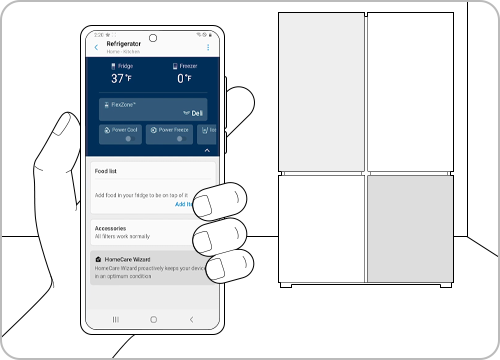
First, download the SmartThings app on your smartphone. Open the app and create an account or log in. Turn on your refrigerator and make sure it is connected to Wi-Fi. In the SmartThings app, tap the plus (+) icon to add a new device. Select “Refrigerator” from the list and follow the on-screen instructions. The app will search for your fridge and connect automatically. Once connected, your fridge will appear on the app’s main screen.
Remote Control Features
SmartThings allows you to control your fridge remotely. Adjust the temperature settings without opening the door. Turn on or off the ice maker with a simple tap. You can also check the status of the door, making sure it is closed. This remote control saves energy and keeps food fresh. It is especially useful when you are away from home.
Receiving Notifications
SmartThings sends notifications to your phone about your fridge. Receive alerts if the door is left open too long. Get reminders when it’s time to change the water filter. The app also notifies you about temperature changes or power outages. These notifications help prevent food spoilage and keep your fridge running smoothly. Stay informed even when you are not near your fridge.

Credit: www.youtube.com
Streaming Entertainment On Family Hub
The Samsung Family Hub refrigerator offers more than just food storage. It turns your kitchen into an entertainment hub. Streaming shows and movies keeps the family entertained while cooking or eating. The large touchscreen allows easy access to various media apps. Enjoy your favorite content with simple steps and great picture quality.
Watching Netflix Via Smart View
Netflix is not directly available on Family Hub. Use Smart View to stream Netflix from your phone or TV. Connect your device and the fridge to the same Wi-Fi network. Open Netflix on your phone or TV and select the Smart View icon. Choose the Family Hub screen to start streaming. This method provides smooth playback of your favorite shows.
Accessing Other Media Apps
The Family Hub supports several media apps beyond Netflix. Apps like YouTube, Spotify, and Pandora can be accessed directly from the fridge. Open the Apps menu and browse for available media apps. Tap to install and launch them quickly. Enjoy music, videos, and more while you cook or relax in the kitchen.
Tips For Smooth Streaming
Ensure a strong Wi-Fi connection for uninterrupted streaming. Keep your Family Hub software updated to avoid bugs. Close unused apps to free up memory and improve performance. Adjust the screen brightness to save power and reduce glare. Restart the fridge occasionally to maintain smooth operation during streaming sessions.
Limitations And Tips
Adding apps to your Samsung Smart Refrigerator can enhance its functionality. Still, there are some limits to keep in mind. Understanding these can help you use your fridge more effectively. Here are key limitations and useful tips for a smoother app experience.
App Availability Restrictions
Not all apps are available for Samsung Smart Refrigerators. The Family Hub supports only select apps designed for its system. Popular apps like Netflix may not be downloadable directly. Instead, you can stream content using other Samsung features. Check the app store on your fridge to see the current options.
Compatible Apps Only
Only apps compatible with the Family Hub OS will work. Apps made for smartphones or TVs often won’t run on your fridge. Choose apps designed for smart refrigerators or those recommended by Samsung. This ensures proper functionality and better performance.
Troubleshooting Common Issues
Sometimes apps may not install or work correctly. Restart your fridge’s touchscreen to fix minor glitches. Ensure your fridge is connected to a stable Wi-Fi network. Clear app cache or update the fridge’s software to solve persistent problems. If issues continue, contact Samsung support for help.
Frequently Asked Questions
How Do I Install Apps On My Samsung Smart Fridge?
Swipe up on the Family Hub home screen to open Apps. Browse available apps in the Samsung Apps store. Tap an app, then select Install. Ensure your fridge is connected to Wi-Fi and signed into your Samsung account. Only apps listed in the store can be installed.
Can I Add Netflix To My Samsung Fridge?
Netflix app is not available for Samsung Family Hub refrigerators. Use Smart View to stream Netflix from your phone or TV to the fridge screen.
How Do I Add An App To My Samsung Smart?
Press the Home button on your Samsung Smart remote. Select the Search icon, find your desired app, then tap Install to add it.
Which Apps To Be Downloaded For A Smart Refrigerator?
Download the SmartThings app to control your smart refrigerator remotely. Use the Samsung Apps store to install available apps like weather, calendar, and recipes. Note, standard Android apps like Netflix are unavailable; stream content via Smart View instead. Ensure Wi-Fi and a Samsung account for app downloads.
Conclusion
Adding apps to your Samsung Smart Refrigerator is simple and useful. Just follow the steps to open the Apps menu and find new apps to install. Remember, app choices may be limited, but they help improve your fridge’s smart features.
Using apps can make your kitchen tasks easier and more fun. Keep your fridge connected to SmartThings for extra control and updates. Enjoy customizing your smart fridge to fit your daily needs. Try adding apps today and see how your kitchen becomes smarter and more convenient.

Hi, I’m the lead researcher and appliance enthusiast behind RefrigeratorSolve. With years of hands-on experience troubleshooting cooling systems and testing home appliances, I am dedicated to bringing you honest reviews, energy-saving tips, and practical solutions to keep your refrigerator running perfectly.