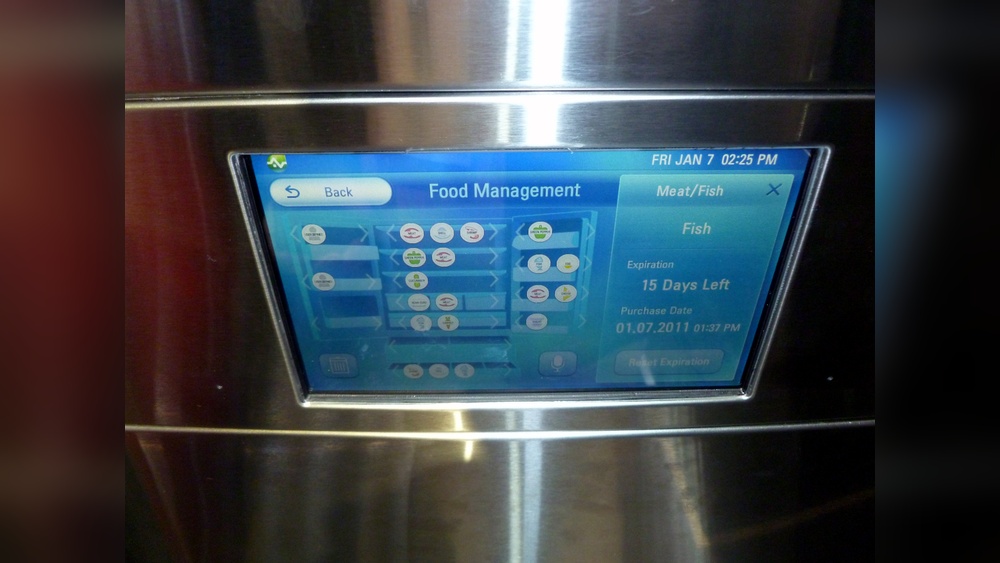
If you’ve just brought home an LG Smart Refrigerator, you’re probably eager to unlock all its amazing features. But first, you need to connect it to your Wi-Fi and sync it with your phone.
Don’t worry if this sounds confusing — you’re about to learn simple, step-by-step instructions to get your fridge online and working with the LG ThinQ app. Imagine controlling your fridge from anywhere, getting notifications, and even managing your groceries with ease.
Keep reading to discover exactly how to connect your LG Smart Refrigerator quickly and effortlessly.

Credit: www.homedepot.com
Prepare Your Lg Refrigerator
Preparing your LG Smart Refrigerator for connection is the first step toward enjoying its smart features. This stage ensures the appliance is ready to link to your home network. Proper preparation avoids setup errors and saves time.
Follow simple steps to get your refrigerator ready. Check if your model supports smart features. Power it on and complete the initial setup. These actions make your fridge ready for connection.
Check Model Compatibility
Find your LG refrigerator’s model number on the label inside the fridge. Visit the LG website to confirm if your model supports smart connectivity. Only compatible models can connect to Wi-Fi and use the LG ThinQ app. This step avoids frustration during setup. Not all LG refrigerators have smart features. Knowing your model’s capabilities is essential.
Power On And Initial Setup
Plug your LG refrigerator into a power outlet. Turn it on using the power button or by simply plugging it in. Follow the on-screen instructions to set the language, date, and time. Complete these basics before connecting to Wi-Fi. This setup activates the smart functions. The fridge must be fully operational for successful connection. Skipping this can cause connection errors later.
Download Lg Thinq App
Downloading the LG ThinQ app is the first step to connect your LG Smart Refrigerator. This app lets you control and monitor your fridge remotely. It offers easy access to features like temperature control, diagnostics, and recipe suggestions. Having the app on your phone makes managing your smart fridge simple and convenient.
Follow these steps to get the app and start using it with your LG Smart Refrigerator.
Find The App On App Stores
Open the app store on your phone. For iPhone users, go to the Apple App Store. Android users should visit Google Play Store. Type “LG ThinQ” in the search bar. Look for the official LG ThinQ app by LG Electronics. Tap the download or install button. Wait for the app to finish downloading. Once done, open the app to proceed with setup.
Create Or Sign In To Your Account
After opening the LG ThinQ app, you need to sign in. If you do not have an account, select the option to create one. Enter your email address and create a password. Follow the instructions to complete registration. If you already have an account, enter your login details. Signing in allows the app to sync with your LG Smart Refrigerator. This step is essential for full app functionality.
Connect Refrigerator To Wi-fi
Connecting your LG smart refrigerator to Wi-Fi allows you to control it remotely and access smart features. This connection keeps your fridge updated and lets you monitor its status from your phone. Follow these simple steps to link your refrigerator to your home network quickly.
Access Network Settings On Fridge
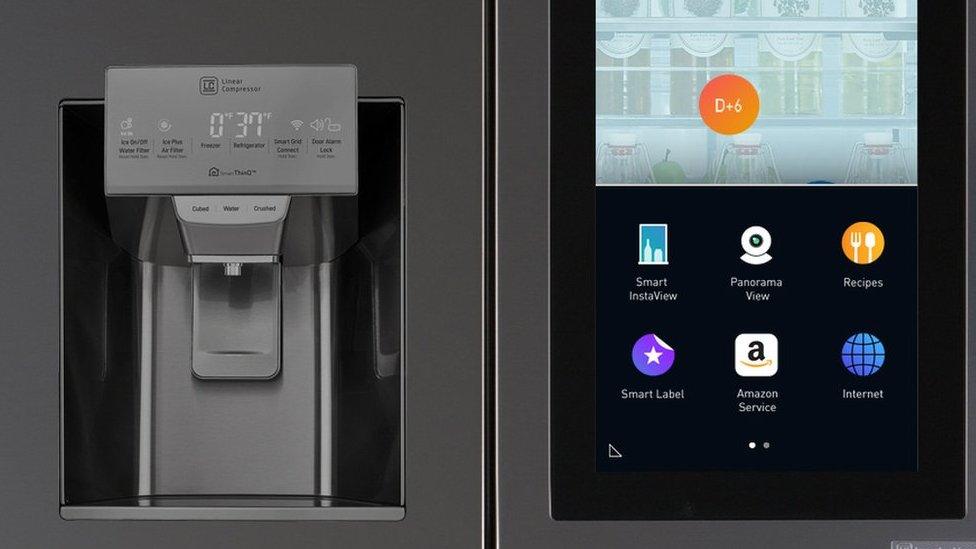
Start by waking up the fridge’s display screen. Find the settings or gear icon on the main menu. Tap to open the settings panel. Scroll down and select the ‘Network’ or ‘Wi-Fi’ option. This opens the network settings where you can connect the fridge to Wi-Fi.
Select Wi-fi Network And Enter Password
The fridge will scan for available Wi-Fi networks automatically. Choose your home Wi-Fi network from the list. Enter the correct Wi-Fi password carefully using the on-screen keyboard. Confirm the password and tap ‘Connect’ to join the network. Wait a few moments for the fridge to establish the connection.
Troubleshoot Connection Issues
If the fridge fails to connect, check your Wi-Fi password for errors. Ensure the router is working and nearby. Restart the refrigerator and try connecting again. Move the fridge closer to your router if the signal is weak. Reset the network settings on the fridge and repeat the process if needed.
Credit: www.bbc.com
Link Refrigerator With Lg Thinq App
Connecting your LG smart refrigerator to the LG ThinQ app opens new ways to control and monitor your fridge. The app lets you check temperatures, receive alerts, and manage settings remotely. Follow simple steps to link your refrigerator with the app for a smooth experience.
Add Device In The App
Open the LG ThinQ app on your smartphone. Tap the plus (+) icon or “Add Device” option. Select “Refrigerator” from the list of appliance types. The app will prepare to connect to your fridge.
Scan Qr Code On Refrigerator
Find the QR code on your refrigerator’s inside wall or user manual. Use the app’s scanner to scan this QR code. This step identifies your specific fridge model for the app.
Complete Device Registration
Follow the app prompts to enter your Wi-Fi details. Connect your fridge to the same network as your phone. Confirm the registration to finish linking the device. Your refrigerator will now appear in the app dashboard.
Customize Refrigerator Settings
Customizing your LG Smart Refrigerator settings lets you control how it works. Adjust options to fit your needs. This helps save energy and keep food fresh longer.
Use the LG ThinQ app or the fridge touchscreen. Both give easy access to important settings. Change temperature, modes, and alerts anytime.
Control Temperature And Modes
Set the fridge and freezer temperature to the right level. Lower temps keep food fresh, higher temps save energy. The app shows current temperatures for quick checks.
Select modes like Quick Freeze or Energy Saver. Quick Freeze chills food fast after shopping. Energy Saver reduces power use during low activity times. Change modes with a tap on your phone or fridge screen.
Enable Notifications And Alerts
Turn on alerts to stay updated about your fridge. Receive notifications if doors stay open too long. Get warnings about temperature changes that may spoil food.
Alerts also remind you to change water filters or schedule maintenance. These notifications help keep your fridge running smoothly. Set alert preferences easily through the LG ThinQ app.
Use Voice Assistants
Using voice assistants to control your LG Smart Refrigerator makes life easier. You can manage settings and check your fridge without touching a button. Voice commands save time and add convenience to your kitchen routine.
Linking your fridge with popular voice assistants lets you use simple speech to interact with it. This section explains how to connect your LG Smart Refrigerator with Google Home and Amazon Alexa for hands-free control.
Connect With Google Home
Start by opening the Google Home app on your smartphone. Tap the plus sign to add a new device. Choose “Set up device” and then “Works with Google.”
Search for “LG ThinQ” in the list of compatible services. Log in with your LG account details to link your fridge. Once connected, you can ask Google to check the temperature or change settings.
Try commands like “Hey Google, what is the fridge temperature?” or “Hey Google, turn on the fridge light.” Your fridge will respond instantly.
Link With Amazon Alexa
Open the Amazon Alexa app on your phone. Tap “More” and select “Skills & Games.” Search for “LG ThinQ” and enable the skill.
Sign in with your LG account to link your refrigerator. Alexa will discover the device and add it to your smart home setup. Use voice commands such as “Alexa, ask LG ThinQ to set fridge temperature to 4 degrees.”
This connection lets you control your fridge with simple voice instructions. It also helps keep track of your fridge status anytime.
Smart Pairing Features
The smart pairing features of your LG Smart Refrigerator simplify daily chores. These features connect your fridge with other LG appliances. This connection allows seamless communication between devices. It helps save time and energy in your kitchen. Smart pairing enhances the efficiency of your home appliances. It also provides better control through the LG ThinQ app.
Pair With Other Lg Appliances
Smart pairing lets your refrigerator communicate with LG washers and dryers. For example, after the washer finishes, the dryer starts automatically. This feature prevents clothes from sitting wet too long. Pairing happens in the settings menu of each appliance. Choose the “Smart Pairing” option and select the appliance to connect. Your fridge can also share alerts and status updates with paired devices. This integration creates a smarter, more connected home.
Manage Smart Pairing Settings
Control your smart pairing options easily via the LG ThinQ app. Open the app and find the smart pairing section. Here, you can add or remove appliances from the pair list. Adjust notifications to receive updates on your phone or fridge screen. Turn pairing on or off anytime to suit your needs. The app also lets you check connection status and troubleshoot issues. Managing settings keeps your smart home running smoothly and efficiently.
Maintain And Update Your Fridge
Maintaining and updating your LG Smart Refrigerator keeps it running smoothly. Regular care improves performance and extends the fridge’s life. Updating firmware adds new features and fixes bugs. Follow simple steps to maintain and update your appliance for the best experience.
Check For Firmware Updates
Firmware updates improve your fridge’s software. These updates fix bugs and add new features. To check for updates, open the LG ThinQ app. Select your refrigerator from the device list. Look for a firmware update option and tap it. Follow the instructions to download and install updates. Keep your fridge connected to Wi-Fi during this process. Updating regularly ensures your fridge works efficiently.
Regular Maintenance Tips
Clean your fridge often to keep it fresh and efficient. Wipe the interior shelves with warm, soapy water. Check and clean the door seals to prevent cold air leaks. Remove dust from the condenser coils every few months. Avoid overloading your fridge to allow proper air circulation. Replace water filters as recommended by LG. Regular maintenance reduces energy use and avoids costly repairs.
Credit: ciss-bienestar.org
Frequently Asked Questions
How Do I Connect My Phone To My Lg Refrigerator?
Download the LG ThinQ app and create an account. Add your refrigerator by scanning its QR code. Connect the fridge to your Wi-Fi. Follow in-app prompts to complete the setup.
How Do I Connect My Lg Refrigerator To My Wi-fi?
Download and open the LG ThinQ app. Register your refrigerator, select it, choose your Wi-Fi network, and enter the password. Connect and enjoy smart features.
How To Connect Lg Thinq With Phone?
Download and open the LG ThinQ app. Tap “Add Device,” select your appliance type, and scan the QR code. Connect to Wi-Fi by entering your network password. Stay close to the appliance during setup for a smooth connection.
How To Use Lg Smart Pairing?
Open the dryer settings, select Smart Pairing, then choose the washer to pair. After washing, transfer clothes to the paired dryer.
Conclusion
Connecting your LG Smart Refrigerator is simple and quick with these steps. Use the LG ThinQ app to manage your fridge easily. Ensure your Wi-Fi is stable for a smooth connection. Once connected, control settings and monitor your fridge remotely.
Enjoy the convenience of smart cooling and alerts. Stay connected to keep your food fresh and save energy. Follow this guide for a hassle-free setup every time. Your smart fridge is now ready to make life easier.

Hi, I’m the lead researcher and appliance enthusiast behind RefrigeratorSolve. With years of hands-on experience troubleshooting cooling systems and testing home appliances, I am dedicated to bringing you honest reviews, energy-saving tips, and practical solutions to keep your refrigerator running perfectly.