Is your Samsung fridge display not working? This problem can be frustrating. The screen might be black, frozen, or not responding. But don’t worry. You can try some easy steps to fix it. This guide will help you understand why this happens and what you can do.
Why Is My Samsung Fridge Display Not Working?
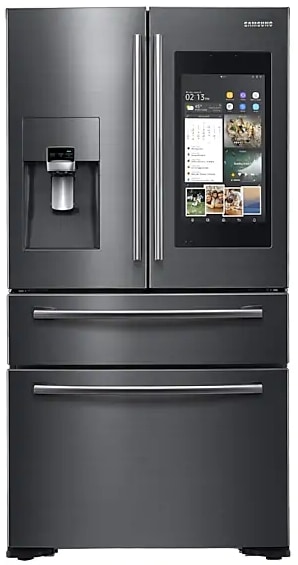
The display on your Samsung fridge shows important information. It tells you the temperature, settings, and alerts. When it stops working, it can be hard to use your fridge.
Here are some common reasons why the fridge display may not work:
- Power issues: The fridge may not get enough power.
- Frozen or stuck screen: The touch screen might freeze.
- Control panel problems: The control panel could be faulty.
- Software glitches: The system might need a reset.
- Damaged control board: The main control board may be broken.
How To Check If Your Fridge Display Has Power
First, check if your fridge is getting power. Sometimes, the display is blank because the fridge is off.
- Is the fridge plugged in properly?
- Try plugging another device into the same outlet to test it.
- Check your home’s circuit breaker. It might have tripped.
If the fridge has power but the display is still off, try these next steps.
Wake Up The Display
Sometimes the fridge display goes to sleep. It may look like it is off but is actually just in sleep mode.
- Touch the display panel gently.
- Open and close the fridge door.
- See if the screen lights up or shows anything.
If the screen stays black, you may need to reset your fridge.
How To Reset Samsung Fridge Display
Resetting the fridge can fix software glitches. It is simple and safe.
- Find the Power button on the control panel.
- Hold the button down for about 10 seconds.
- The fridge will turn off and then back on.
- Check if the display works after the reset.
If your fridge does not have a power button, try this:
- Unplug the fridge from the power outlet.
- Wait for 5 minutes.
- Plug it back in.
- Check the display again.
Fix Frozen or Stuck Samsung Fridge Display
Sometimes the screen is frozen or stuck. You cannot press buttons or change settings.
Try these tips:
- Press and hold the Power button for 10 seconds.
- Open the fridge door and wait a few seconds.
- Close the door and try the screen again.
- If the screen stays frozen, unplug the fridge for 5 minutes.
This helps to clear minor software bugs.
When To Replace The Control Board
The control board is the “brain” of your fridge. It controls the display and other parts.
If the display is still not working, the control board might be broken.
Here are signs the control board needs replacing:
| Signs | Details |
|---|---|
| Display stays black | All reset and power checks fail |
| Fridge cools normally | But display does not respond |
| Error codes on fridge | Codes point to control board failure |
| Burnt smell or visible damage | Control board looks damaged or burnt |
If you see these signs, you may need to replace the control board.
Is It Worth Replacing The Control Board?
Replacing the control board can be good if your fridge is in good condition. It can save money compared to buying a new fridge.
But if your fridge is old or has many problems, replacing the board may not be worth it.
Think about this before you replace:
- Age of your fridge (less than 15 years is better)
- Other parts working well (compressor, fans)
- Cost of new control board and repair fees
- Possibility to repair the board instead of replace
How To Replace The Control Board
If you decide to replace the control board, it is best to hire a technician. But if you want to try yourself, here are steps to follow:
- Unplug the fridge to avoid electric shock.
- Remove the screws holding the control panel.
- Carefully disconnect the wires from the old board.
- Connect the new control board wires in the same way.
- Reattach the control panel and screws.
- Plug the fridge back in and test the display.
Remember, if you are not sure, call a professional.
Credit: www.samsung.com
Prevent Samsung Fridge Display Problems
You can take simple steps to avoid display problems:
- Avoid power surges by using a surge protector.
- Keep the fridge clean and dry inside and outside.
- Do not press the display too hard.
- Regularly check and update the fridge software if needed.
- Call service if you notice strange noises or smells.

Credit: www.youtube.com
Summary
If your Samsung fridge display is not working, start with simple checks. Make sure the fridge has power. Try waking up the display by touching or opening the door. Reset the fridge by power cycling it. If the screen is frozen, follow reset tips.
If these steps do not help, the control board might be faulty. Check for signs like error codes or burnt parts. Decide if replacing the board is worth it based on your fridge’s age and condition.
Always be careful when working with electrical parts. If unsure, call a repair expert.
Following these easy steps can help you fix your Samsung fridge display. Keep your fridge working well and avoid bigger problems.
Frequently Asked Questions
Why Is My Samsung Smart Fridge Screen Black?
A Samsung smart fridge screen turns black due to power issues, screen timeout, or software glitches. Try opening the door, touching the panel, or resetting the control board to fix it. Check settings and ensure the fridge has stable power supply for proper display function.
How Do I Reset My Samsung Refrigerator Control Panel Not Working?
Unplug your Samsung refrigerator for 5 minutes to reset the control panel. Plug it back in and test the display. If unresponsive, press and hold the Power Freeze and Power Cool buttons simultaneously for 10 seconds to reset the panel.
Is It Worth Replacing A Fridge Control Board?
Replacing a fridge control board is worth it if the fridge is in good condition and cooling properly. Confirm the board is faulty before buying. DIY replacement saves labor costs. Avoid if multiple parts fail or the fridge is old; consider a new unit instead.
How To Fix Unresponsive Touch Screen On Samsung?
Restart your Samsung device by holding the power button. Clean the screen with a soft cloth. Update software to fix bugs. Disable screen protectors causing issues. Perform a factory reset if problems persist.

Hi, I’m the lead researcher and appliance enthusiast behind RefrigeratorSolve. With years of hands-on experience troubleshooting cooling systems and testing home appliances, I am dedicated to bringing you honest reviews, energy-saving tips, and practical solutions to keep your refrigerator running perfectly.